
4. Preflop GTO Trainer
Learn how to use Lucid Poker's free Preflop GTO Trainer to drill preflop decisions, review your mistakes, and explore solver solutions in a few taps.
How it works
The Preflop GTO Trainer puts you through a series of real preflop spots and scores each decision against the GTO solution. You choose a game type, set a hand count, and work through each situation one at a time. After each decision, Lucid tells you whether your play was correct, solver-approved at a mixed frequency, or a mistake.
Preflop drilling is free for all users. Custom drill filters are a Pro-only feature.
Not every correct play is pure. If Lucid marks a move as solver-approved at a low frequency, that is still a valid action. The goal is to understand the range, not just the top play.
Step by step
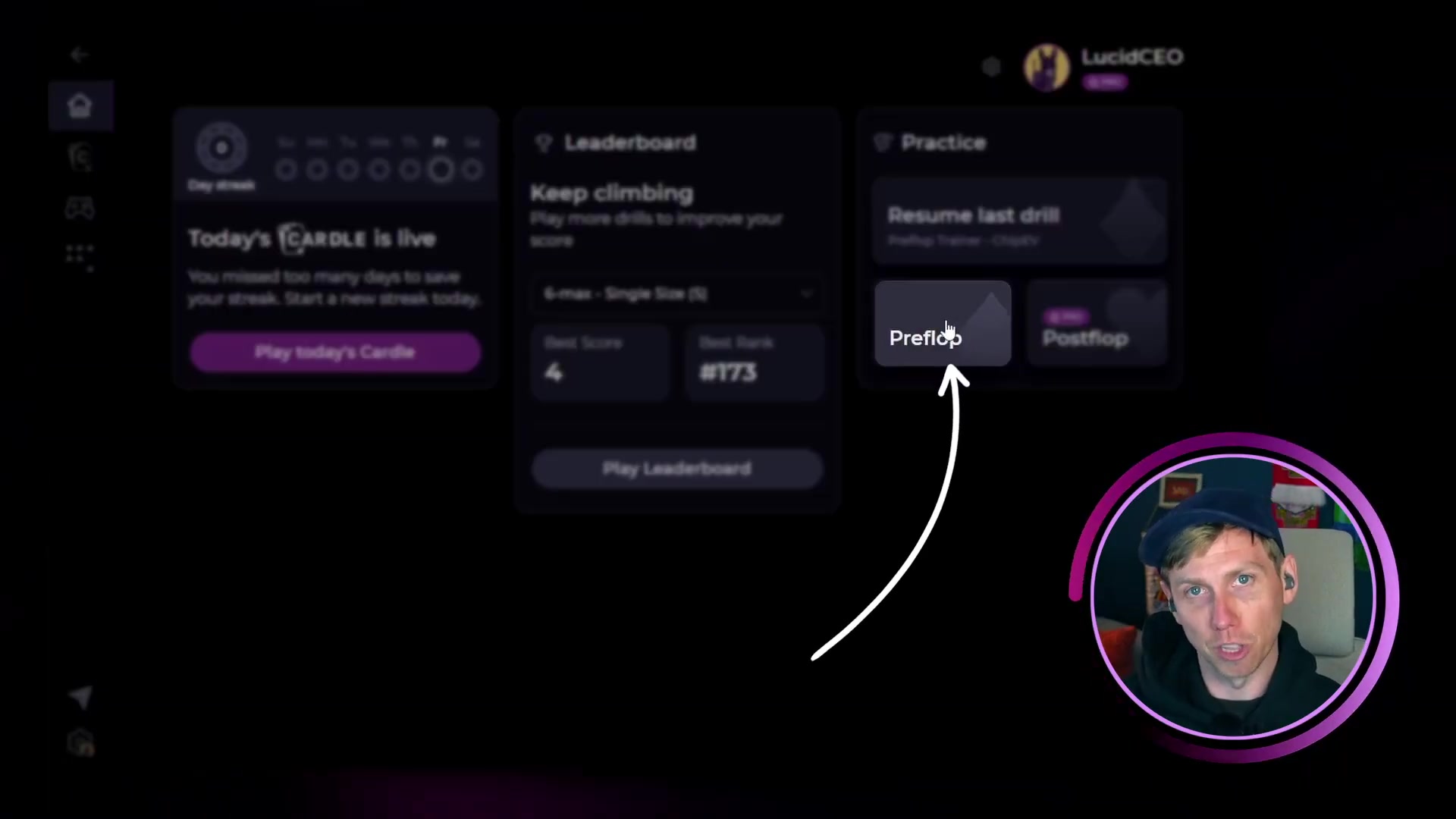
- 1Tap Preflop on the home screenTap the Preflop button. This takes you directly to the drill setup screen.
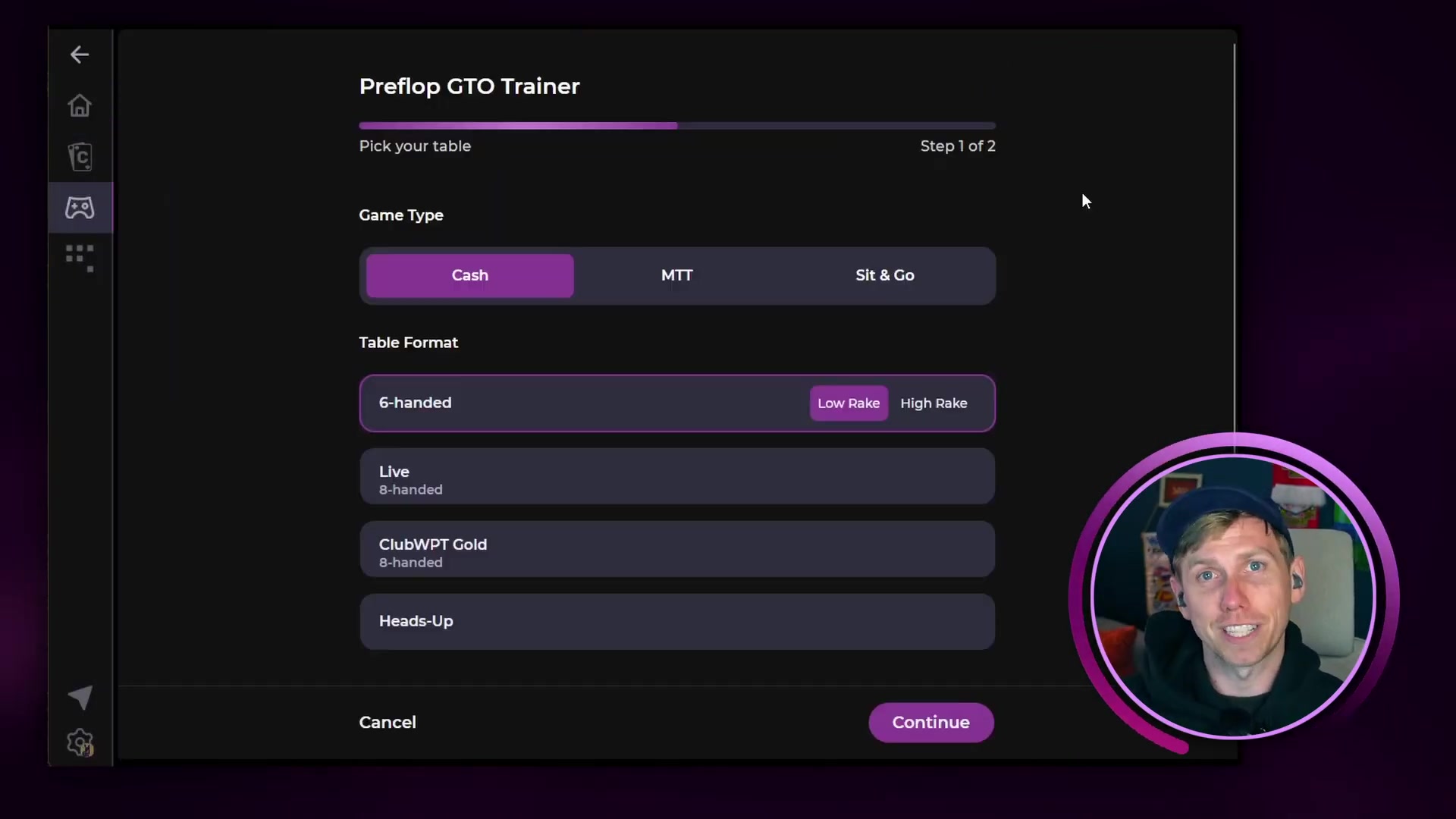
- 2Select your game typeChoose Live Poker or Online. Your choice determines the rake assumptions used in the GTO solution.
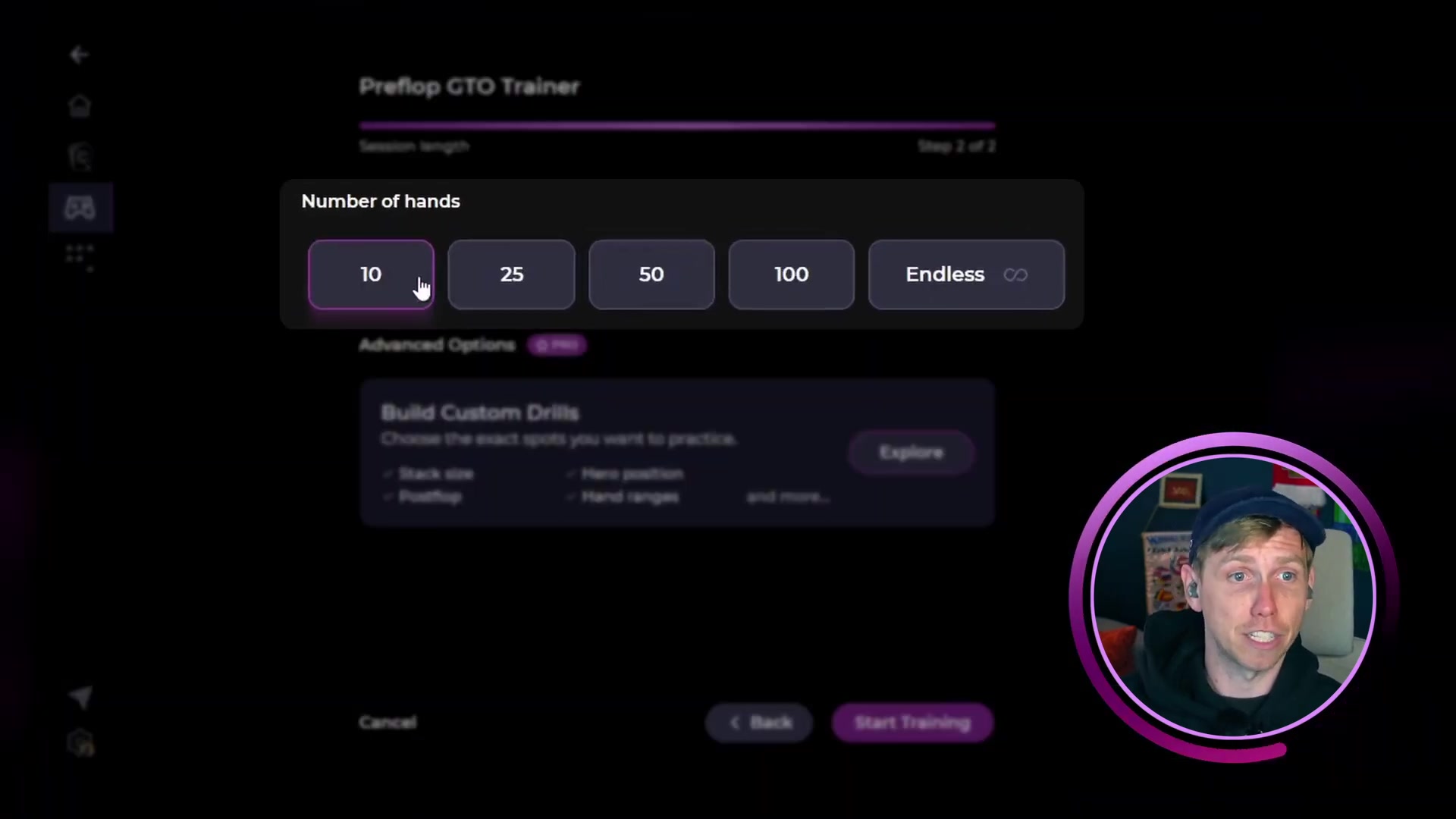
- 3Set your hand countPick how many hands to drill. 10 is a good starting point. Custom configurations require a Pro subscription.
- 4Tap Start TrainingTap Start Training. Each hand shows your position, stack depth, and the action before you.
- 5Make your decision and get feedbackChoose an action. Lucid immediately reveals whether your play was correct, solver-approved at a frequency, or a mistake. Then moves to the next hand.
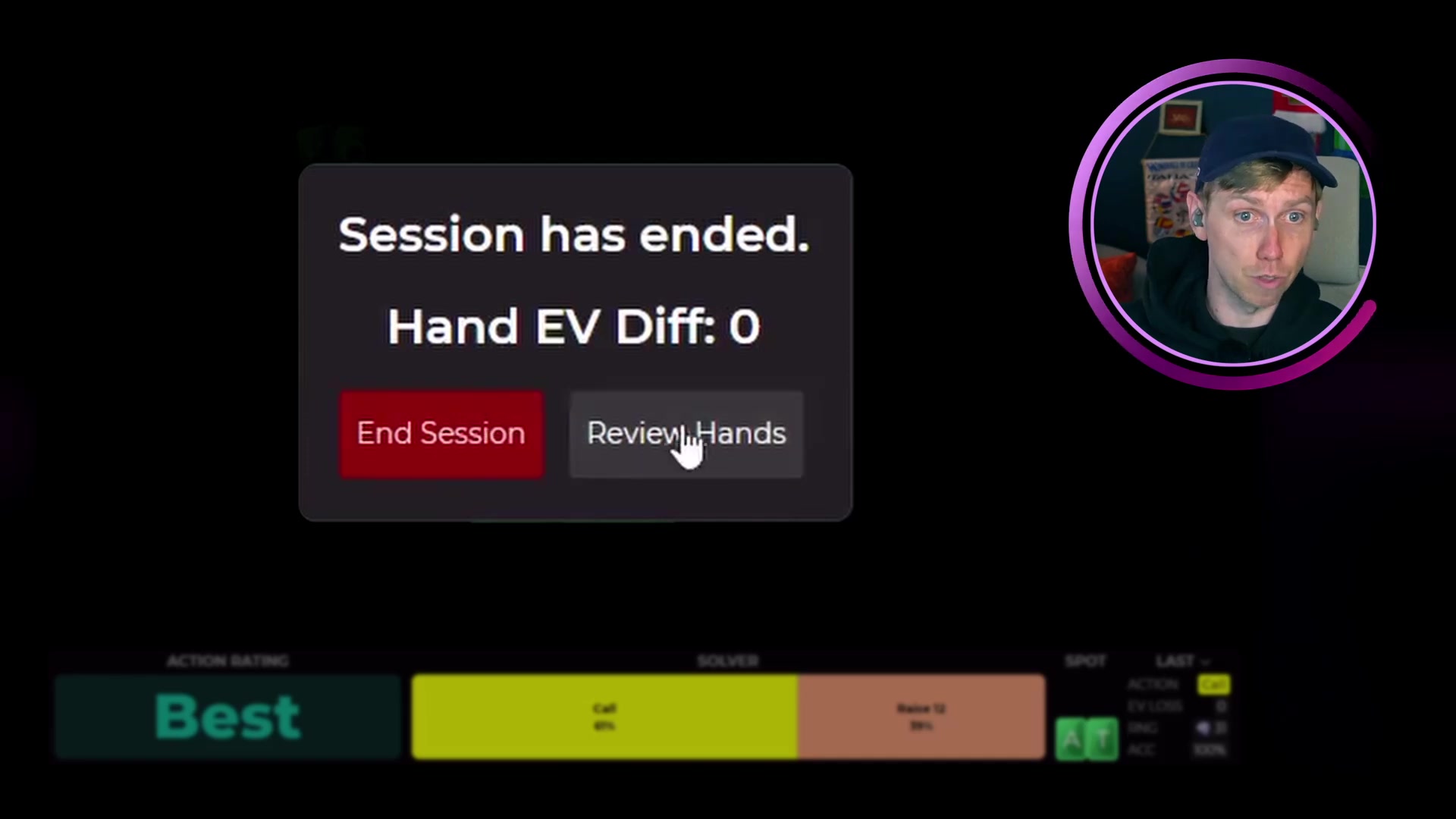
- 6Review your sessionAfter the final hand, tap Review Hands to see every decision and EV lost on any mistakes.
Reading the feedback
After each decision, Lucid shows you the solver's verdict. Three possible outcomes:
- Correct. Your action matched the solver's primary recommendation.
- Solver-approved at a low frequency. Your action is in the GTO range but not the top play. Not a mistake, but worth studying.
- Mistake. Your action was not part of the solver's strategy. Lucid shows the correct play and EV lost.
Scenario: You hold A♦Q♦ facing a raise and a three-bet. In a rake-free sim at this stack depth, the solver folds every time. Four-betting costs roughly half a big blind in EV and shows as a mistake in your review.
Session review and the Sim Browser
After all hands are complete, tap Review Hands to see a summary of every decision. Tap any hand to open it in the Sim Browser and see the full range breakdown for that spot.
The solver range can be tighter than you expect. In spots with a raise and three-bet in front, the continuing range is often very narrow. In many rake-free sims, only aces, kings, ace-king, and queens continue.
Free vs. Pro
- Free users: Unlimited preflop drilling with standard drill configurations.
- Pro users: Custom drill builder with filters for position, stack depth, and spot type. Unlimited postflop drilling (free users get 5 postflop drills per day).
Next steps
After completing a preflop drill session:
- Use Review Hands to find spots that cost the most EV
- Open the Sim Browser on any mistake to study the full range
- Run another session to build reps on the same game type
- Check Progress Tracking to see improvement over time
