
8. Heat-maps
Heat maps let you see the EV and equity distribution across every hand in your range at a glance. They are available in the Sim Browser for any postflop situation.
How It Works
Inside the Sim Browser, every postflop situation shows an EV number and an equity number at the bottom of the screen. Tapping either of those numbers opens the heat map for that player.
The heat map is a grid of every hand in that player's range. Each cell shows a number and a color. The color tells you at a glance how strong that hand is relative to the rest of the range.
- Green: High EV or high equity hands. Your strongest holdings in this spot.
- Yellow: Middle of the range. Decent but not dominant.
- Red and orange: Low EV or low equity hands. Your weakest holdings here.
If you have not built a postflop node before, the Sim Browser guide covers game tree navigation and how to reach any spot.
Switch between players to compare range strength. Tap the EV or equity number for your opponent to see their heat map side by side with your own. The contrast tells you who has the range advantage.
EV Heat Map vs. Equity Heat Map
Lucid gives you two separate heat maps for each player. They measure different things.
EV Heat Map
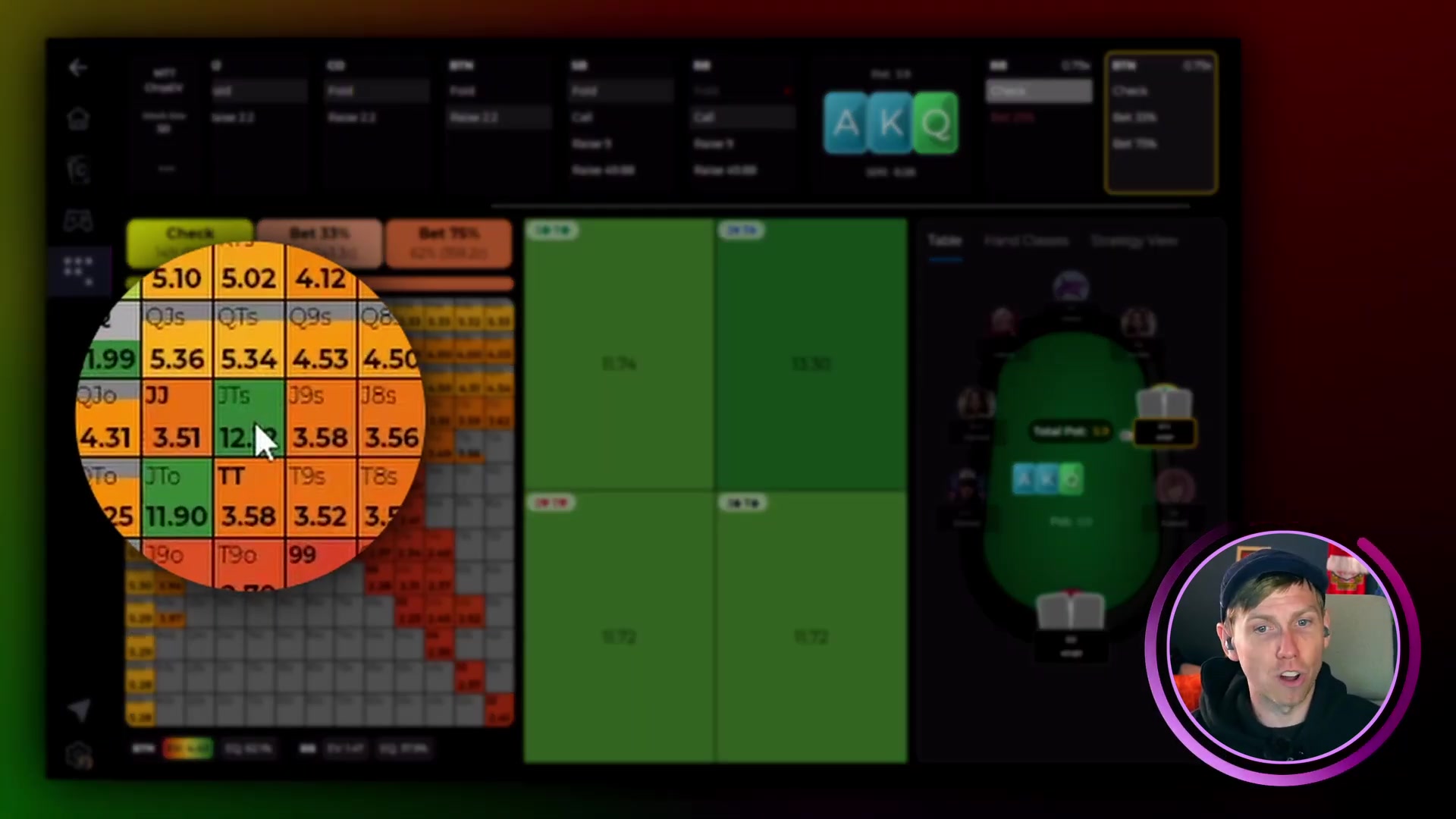
Shows the expected value of each hand in big blinds. This is how much that hand is worth on average across all future streets, given optimal play from both sides. A hand with a high EV number is not just strong now: it has strong long-run value from this node.
On an A♦K♦Q♣ flop in a tournament sim, the BTN's J♣T♣ shows over 12 big blinds of EV despite the pot being only 6bb. That's because the hand has massive equity with a straight draw plus backdoor nut flush potential. Compare that to 8♥7♣ on the same board, which has less than 2bb of EV. Less than a third of the pot.
Equity Heat Map
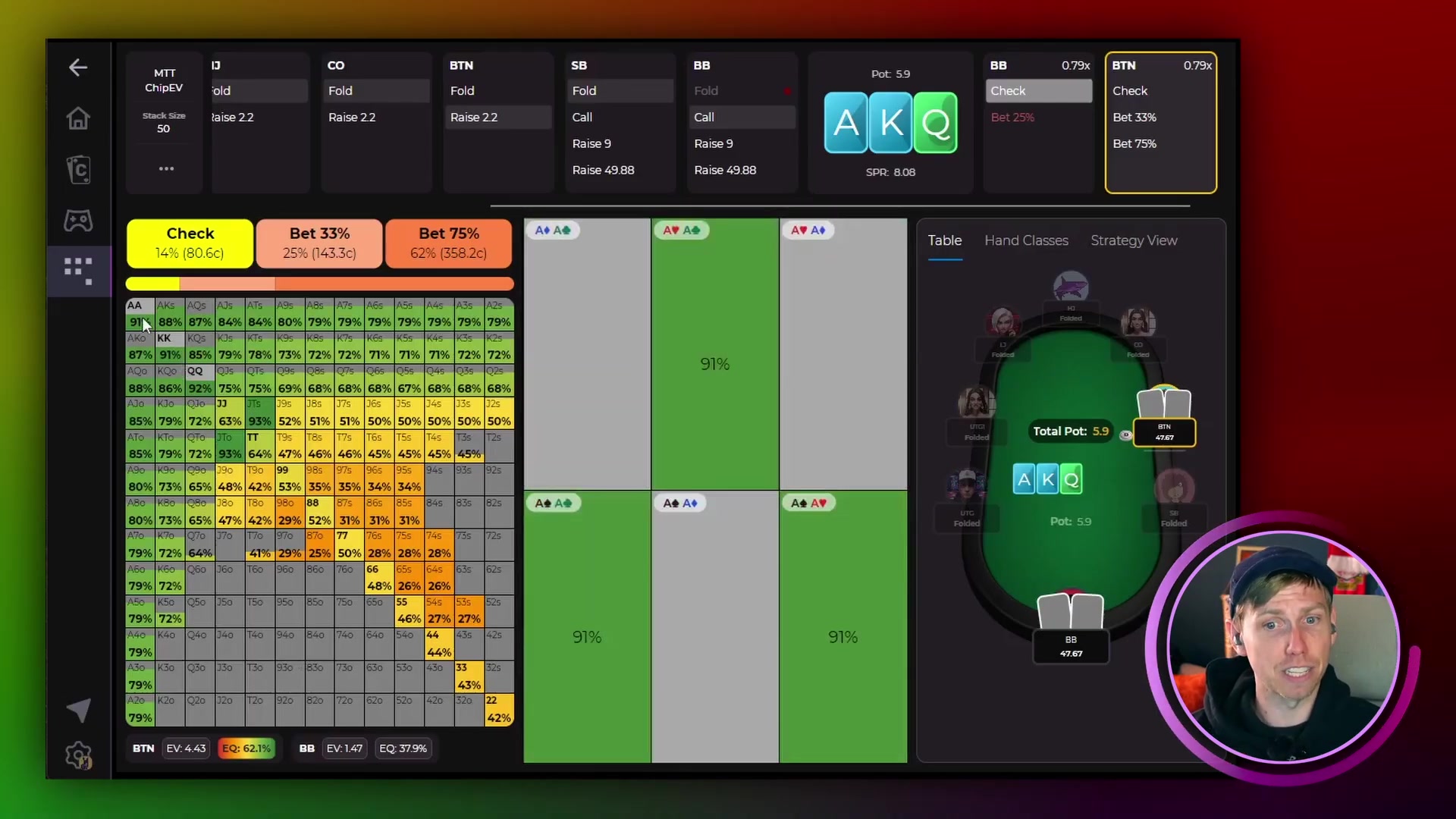
Shows the raw equity percentage each hand has against the opponent's entire range. This is simpler: it's how often that hand wins at showdown if no more betting changes the outcome.
On A♦K♦Q♣, pocket aces in the BTN's range show 91% equity against the BB's entire range. The BB's equivalent holdings are much weaker: lots of red in the middle and bottom-right of the grid.
How to Open the Heat Map
-
1Open a postflop situation in Sim BrowserNavigate to any flop, turn, or river node in the Sim Browser.
-
2Find the EV and equity numbersLook at the bottom of the screen. You'll see two numbers for each player: EV in big blinds and equity as a percentage.
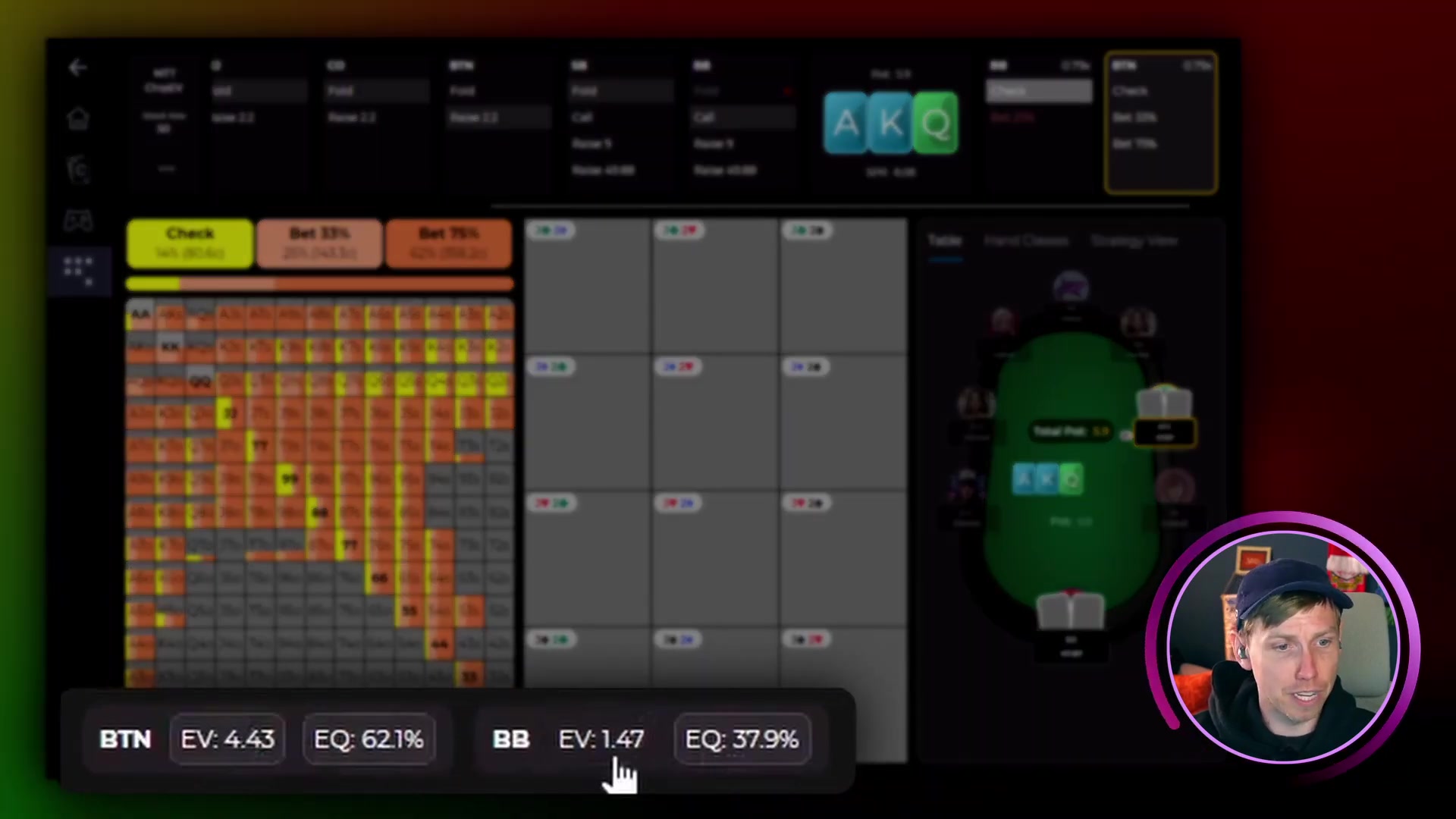 The EV and equity bar at the bottom of the screen. BTN and BB each show an EV number (big blinds) and an equity number (percentage). Solver Library
 -
3Tap a number to open the heat mapTap the EV number to open the EV heat map, or tap the equity number to open the equity heat map for that player.
-
4Switch players to compareTap the other player's number to see their heat map. Comparing the two grids shows you which player holds the range advantage on this board.
Reading Range Advantage
The real value of heat maps is comparing both players on the same board. The more green one player has relative to the other, the stronger their overall range is in that spot, and the more aggressively the solver plays for them.
A♦K♦Q♣ (BTN vs BB): The BTN has a lot of green, especially in the top-left of the grid. The BB has mostly red with very little green. The BTN bets nearly all the time here, checking only 14% of hands.
6♦5♣4♣ with a flush draw (BTN vs BB): Both players are close to 50% equity and about 3bb EV. The BTN has more red than usual. The BB's range is strong enough that it occasionally donk bets, a sign of range advantage.
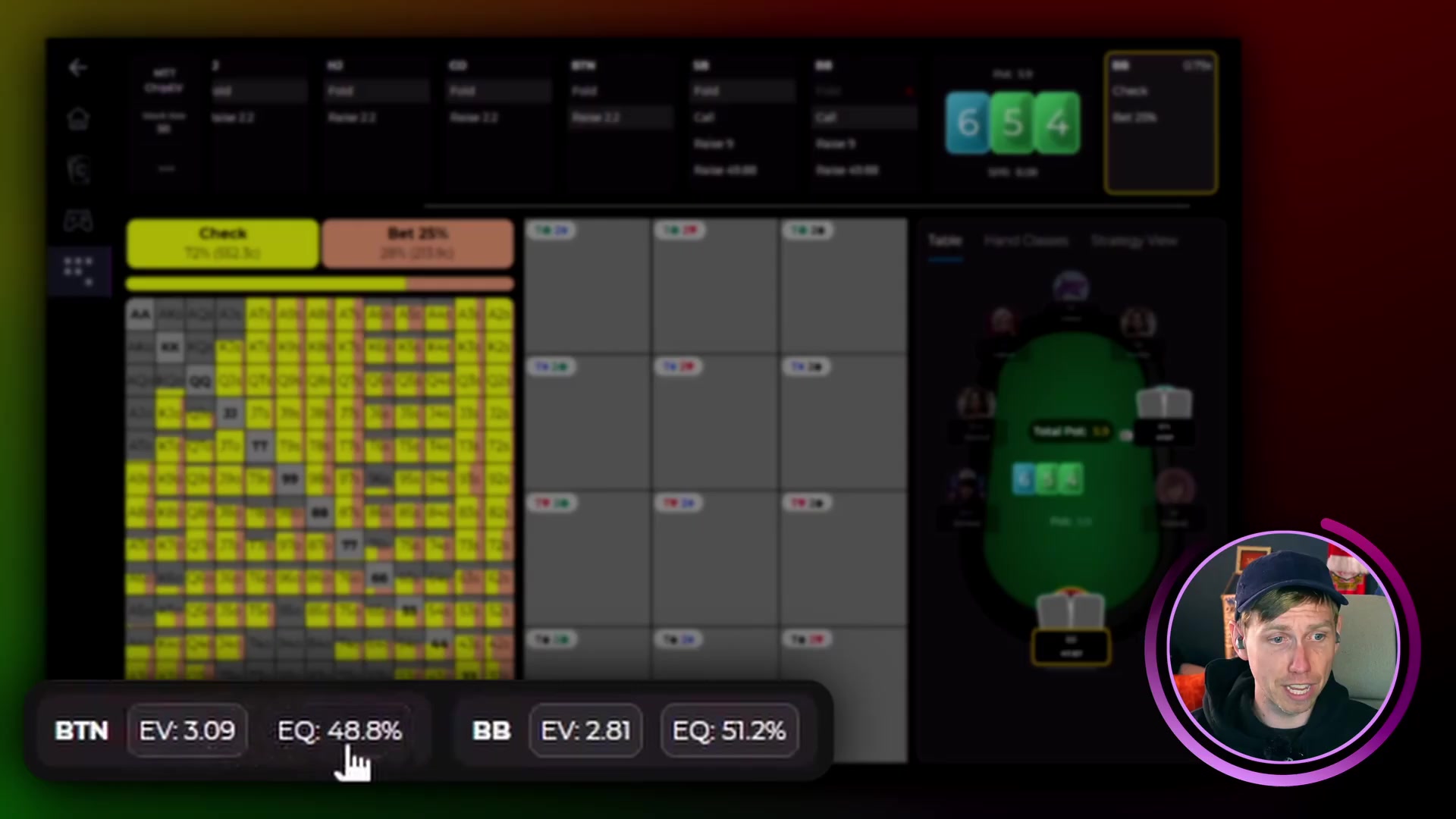
More green means more aggression. When one player's heat map is significantly greener than the other's, the solver rewards aggressive action: betting, raising, and building the pot. When the maps are close, expect more mixed strategies and checking.
Once you have identified the aggressor, you can test different sizings in that exact spot using custom solving with subtrees.
Access and Limits
Heat maps are available to all Lucid Poker members, both free and Pro.
- Free members can access up to 5 postflop situations per day in the Sim Browser.
- Pro members get unlimited postflop Sim Browser access, including unlimited heat map views.
Next Steps
Once you understand the heat maps, try using them alongside the full strategy view:
- Use the heat map to get an instant read on range advantage, then check the node frequencies in the Sim Browser to see how the solver acts on that advantage
- After a daily Cardle, tap Explore This Spot to review the heat maps for that exact situation
- Turn a board type you keep misreading into a Custom Drill for repeated reps
- Look for boards where the heat maps are nearly even. These are the spots with the most complex, mixed strategies worth studying in depth.
