
9. Custom Solving with Subtrees
Custom solving re-solves any turn or river spot with the bet and raise sizes you choose. This guide covers the subtree builder, geometric sizing, and the three main ways to use it.
How It Works
Custom solving lets you re-solve any turn or river spot with the bet and raise sizes that you choose. Instead of studying only the preset sizes in a solved tree, you build a small custom game tree, called a subtree, and Lucid's built-in solver returns a fresh strategy in a few seconds.
This works in two directions. You can build and test sizes you want to use at the table, and you can plug in a size an opponent actually used and see how you were supposed to respond. The custom solver is the engine behind this, and it is the first of several planned applications that will include node locking and flop resolving.
Custom solving runs inside the Sim Browser. If you have not navigated the game tree before, start with the Sim Browser guide.
Sizes that are very close together get merged. While resolving, the solver will not run two sizes that are nearly identical, so there is no need to add both a 64% and a 67% pot size to the same node.
Step by Step
Here is how to run a custom resolve from start to finish.
-
1Open the Sim BrowserSelect Sim Browser from the sidebar on desktop, or the bottom bar on mobile.
-
2Set your game type and stack depthChoose the format, for example MTT, and the effective stack, for example 50 big blinds.
-
3Build the preflop and flop actionSet the preflop scenario, the flop, and the flop action line. For example, a button versus big blind single raised pot, a Q J 5 flop with two diamonds, and a check, bet, call line.
-
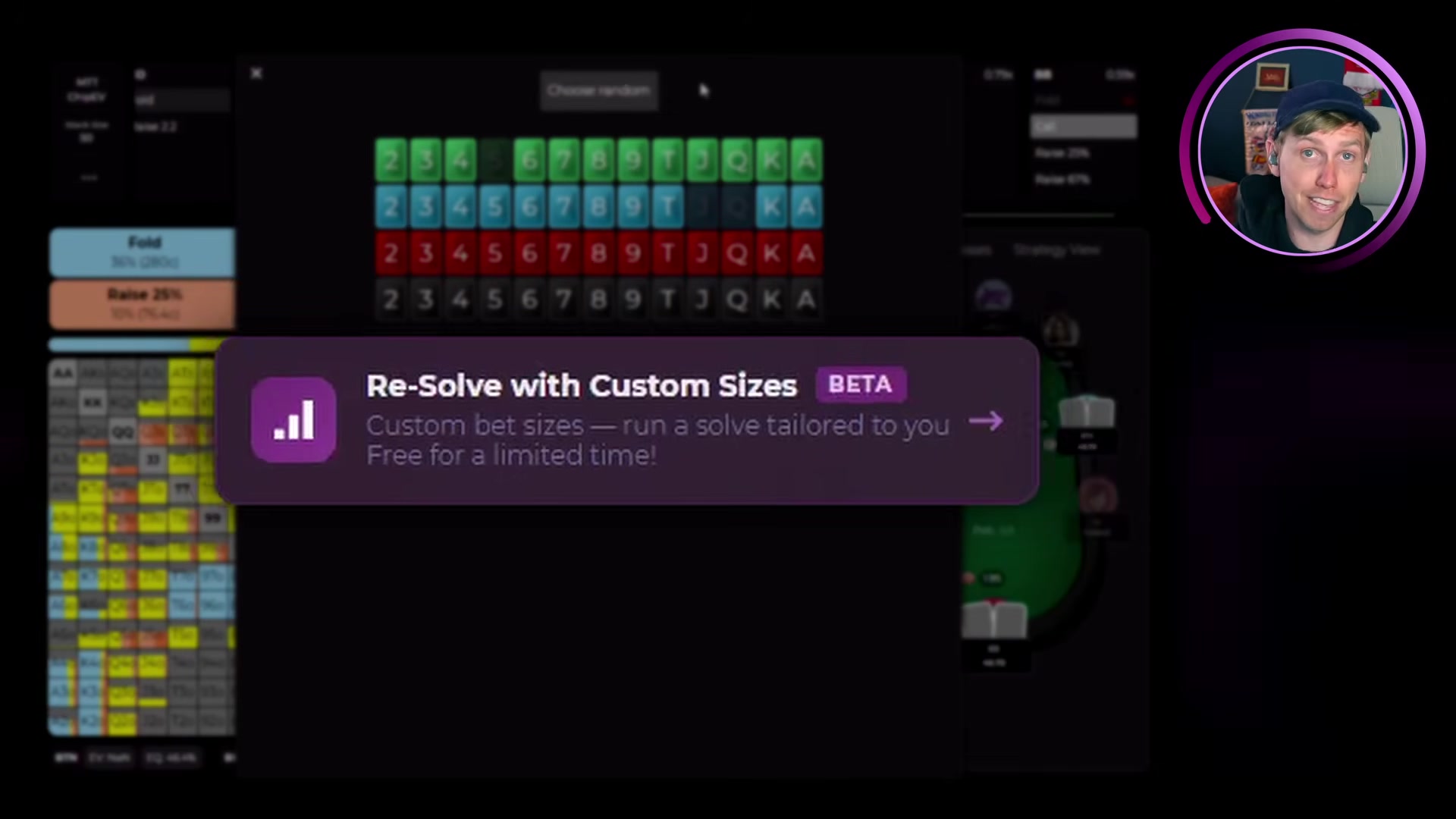
4Tap Resolve with Custom SizesWhen you reach the turn, tap the purple Resolve with Custom Sizes button to open the subtree builder.
-
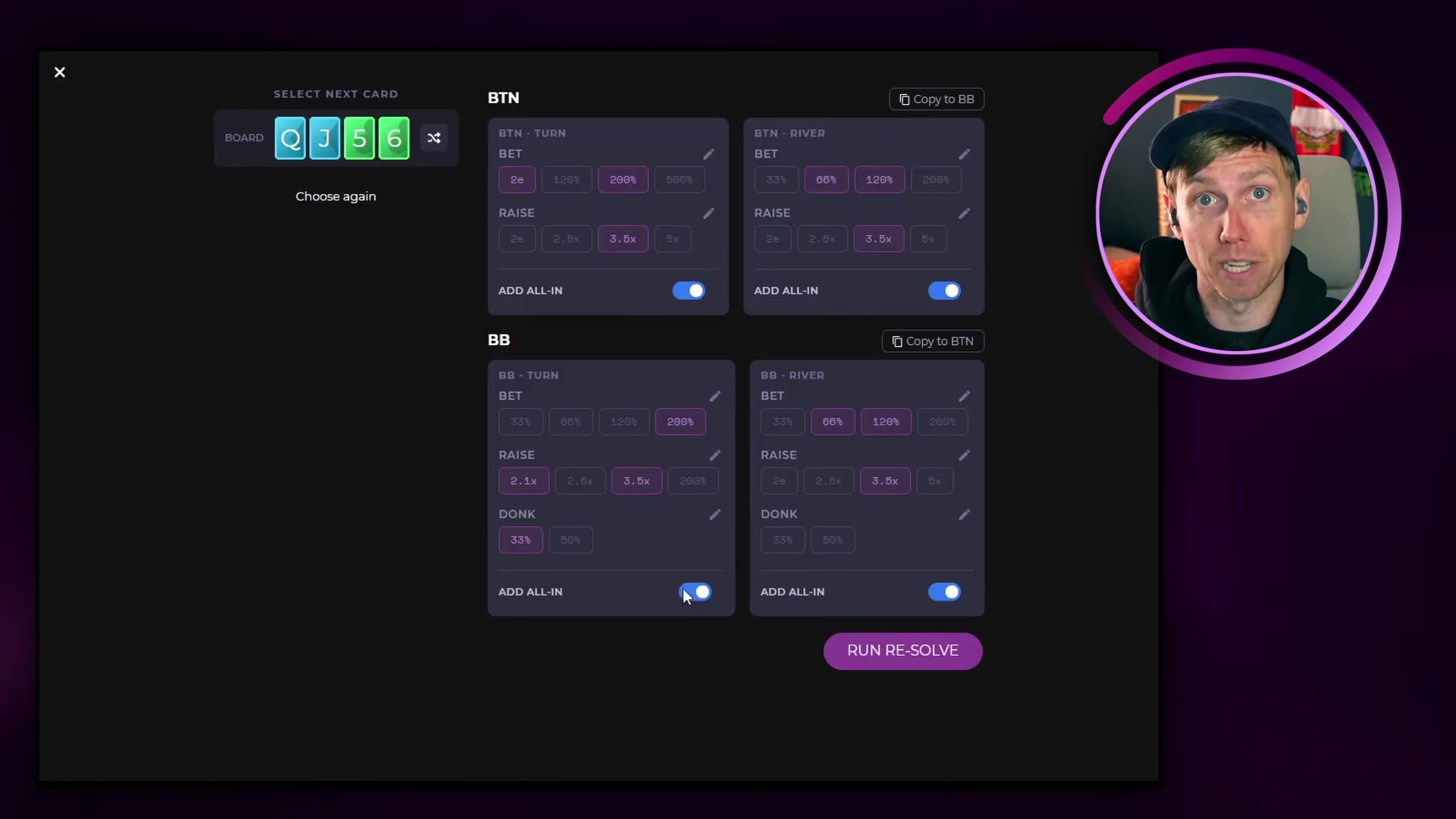
5Pick your turn card and sizesSelect the turn card, then set the bet sizes and raise sizes for each player. You can also set a donk strategy for the out of position player.
-
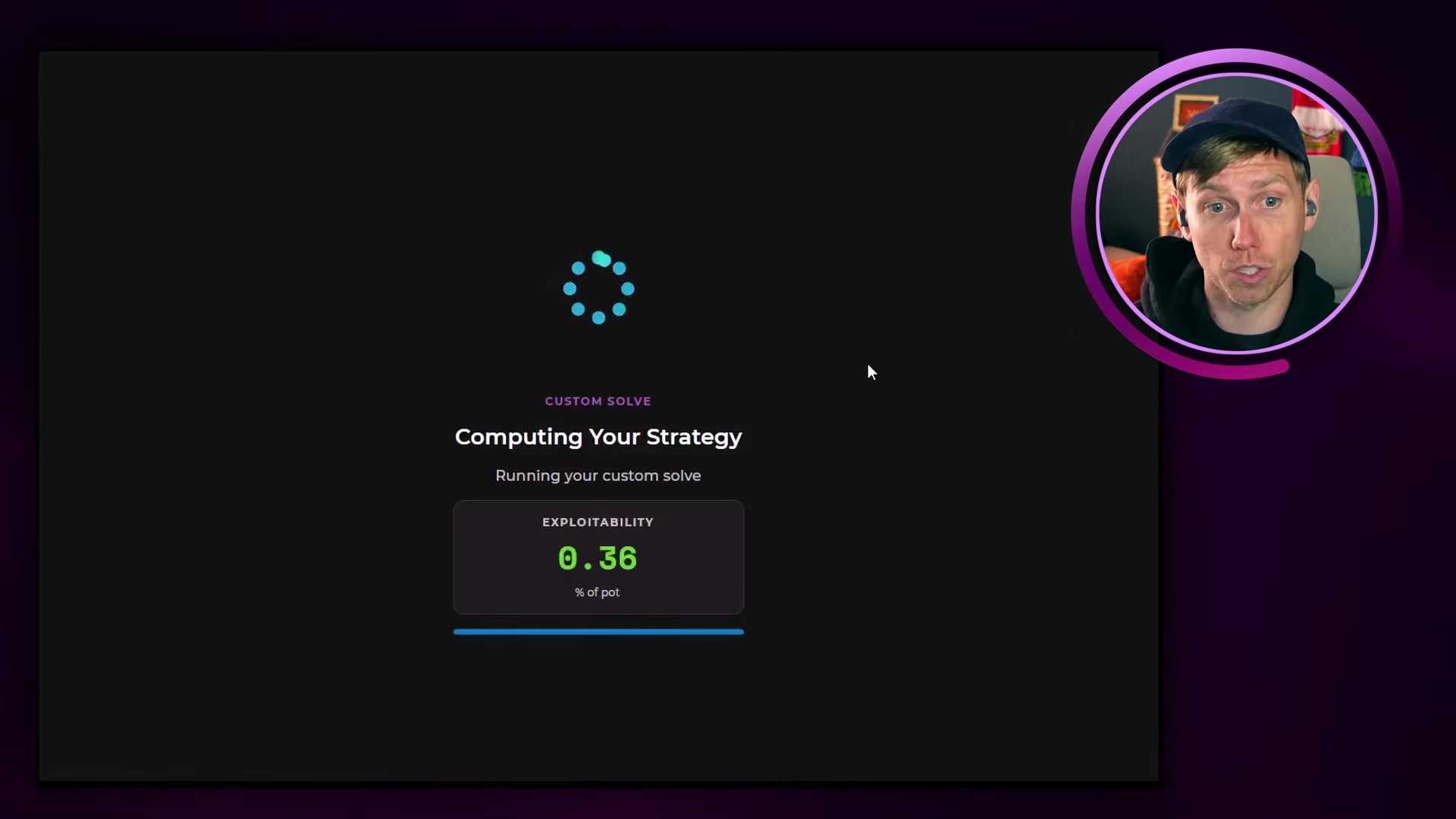
6Run the resolve and view resultsThe solver works to minimal exploitability in a few seconds. Tap View Results to see the strategy.
Setting Custom Bet and Raise Sizes
The subtree builder is where you define the sizes the solver is allowed to use. Each node has its own set of size options.
Bet sizes
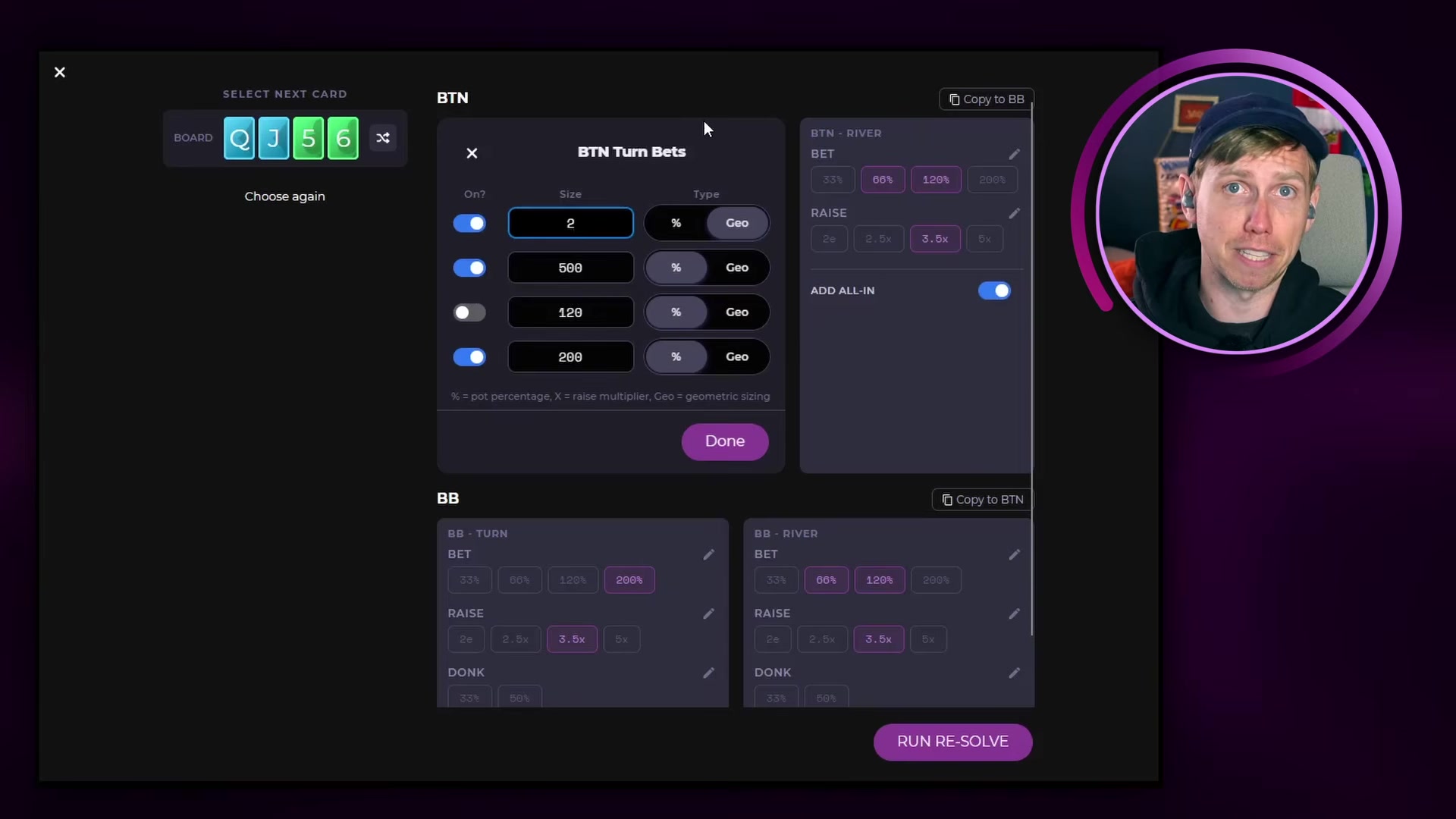
Every betting node shows preset options, and you can have up to three sizes selected at once. The solver will consider any of the sizes you select. Tap the pencil icon to edit the fields and enter any size you want, from 10% pot to 500% pot. You can also enter a geometric size, such as a two street geometric bet that sets up a river shove with the turn bet. You can display the geometric size on every node by turning it on in Settings.
Each size can be set as a percent of pot or a geometric size. Use the % / Geo toggle next to each row. Percent of pot is a fixed size relative to the current pot. Geometric sizing automatically scales the bet so that, if repeated on every remaining street, it builds evenly toward an all in by the river. This is useful for setting up a specific river shove without doing the math by hand.
Raise sizes
Raise sizes work the same way. You can set a raise as a percent of pot, as a multiple of the bet (for example 3.5x, so a raise to 35 over a bet of 10), or as a geometric raise. For the out of position player you can also set a donk strategy, which controls whether they can lead into the previous street's aggressor and how large that lead can be.
Three Ways to Use Custom Solving
1. As a sword: build your own strategy
Use custom solving to test the sizes you want to take to the table as the aggressor. Give the solver a couple of options on the turn, run it, then trim the sizes that rarely get used until you are left with a clean strategy you can actually execute.
2. As a shield: counter an opponent's size
If an opponent used an unusual size in a hand you played, plug that exact size in and find the correct response. For example, if the button bets 50% pot on the turn, set your raise options against that bet and run the resolve to see how often you should call, raise, or fold.
3. Compare EV between strategies
The expected value for the player on action shows at the bottom of the results screen. Run the same spot with different sizes and compare the numbers to find the higher EV line. To see where that EV is coming from across your whole range, open the EV and equity heat maps for the resolved node.
Scenario: On one turn size the button's EV is 5.18 big blinds. Re-solving the same spot with a larger geometric size raises the button's EV to 5.32 big blinds. That is about 0.14 big blinds captured, or roughly 1.5% of a 10 big blind pot. Small per hand, but it adds up over time.
Free vs Pro Limits
Free members can run one custom resolve per day of any turn or river spot. Pro members can run effectively unlimited resolves, with only minor rate limiting. If you are not on Pro, you can start a free trial to test the feature in full. Resolves run on phone, computer, or tablet, anywhere with an internet connection.
Common Issues
The solver only returned one of my sizes
If two sizes you entered were close together, the solver merged them during the resolve. Space your sizes further apart if you want to compare distinct options.
A size I added is never used
That size is not part of the solver-preferred strategy for that node. You can remove it and run the resolve again to simplify the tree.
I hit my daily limit
Free accounts include one resolve per day. Start a Pro free trial for effectively unlimited resolves.
Next Steps
- Rep a strategy you built by setting up the same spot in Custom Drills.
- New to the app? Start with the Lucid Poker app overview for a tour of the Sim Browser and core features.
- Share an interesting resolve in the Lucid Discord community.
