
7. SIM Browser
Learn how to navigate the Sim Browser, read hand grids, use equity and EV breakdowns, apply range filters, and run custom turn and river resolves with Lucid's built-in solver.
How It Works
The Sim Browser is Lucid's game tree explorer. It gives you direct access to pre-solved GTO solutions across preflop and postflop situations so you can study any spot in depth, without needing to run a solver yourself.
Free users can browse all preflop situations and up to 5 postflop spots per day. A Lucid Pro subscription removes the postflop limit and unlocks custom turn and river resolves with Lucid's built-in solver.
Use the Sim Browser alongside Drills. After identifying a spot you want to study, you can create a custom drill from the same node. This moves you from passive study to active reps.
Accessing the Sim Browser
-
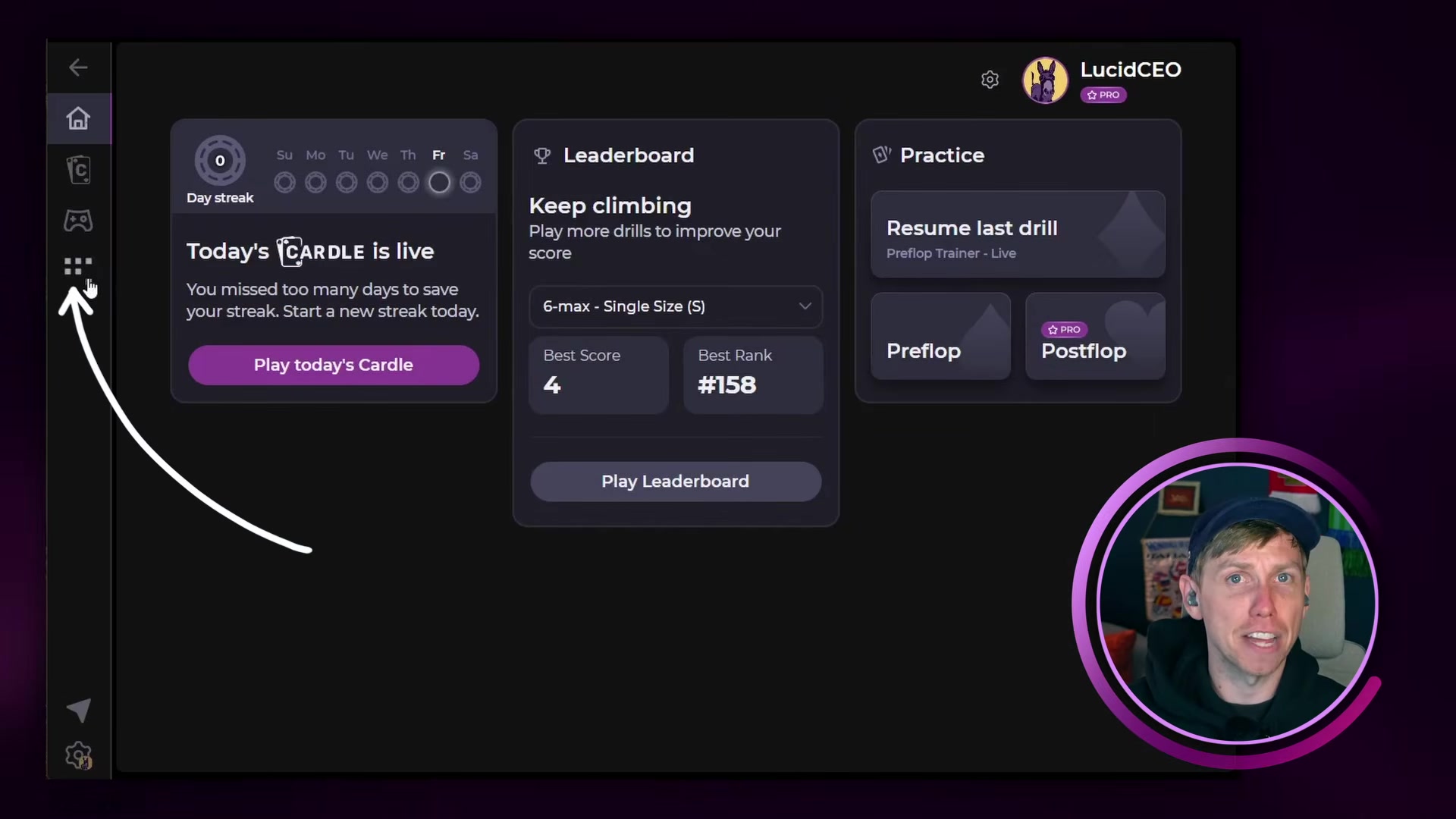
1Open Lucid and find the Sim Browser iconLook for the hand grid icon. On desktop it appears in the left-hand menu. On mobile it is in the bottom navigation bar.
-
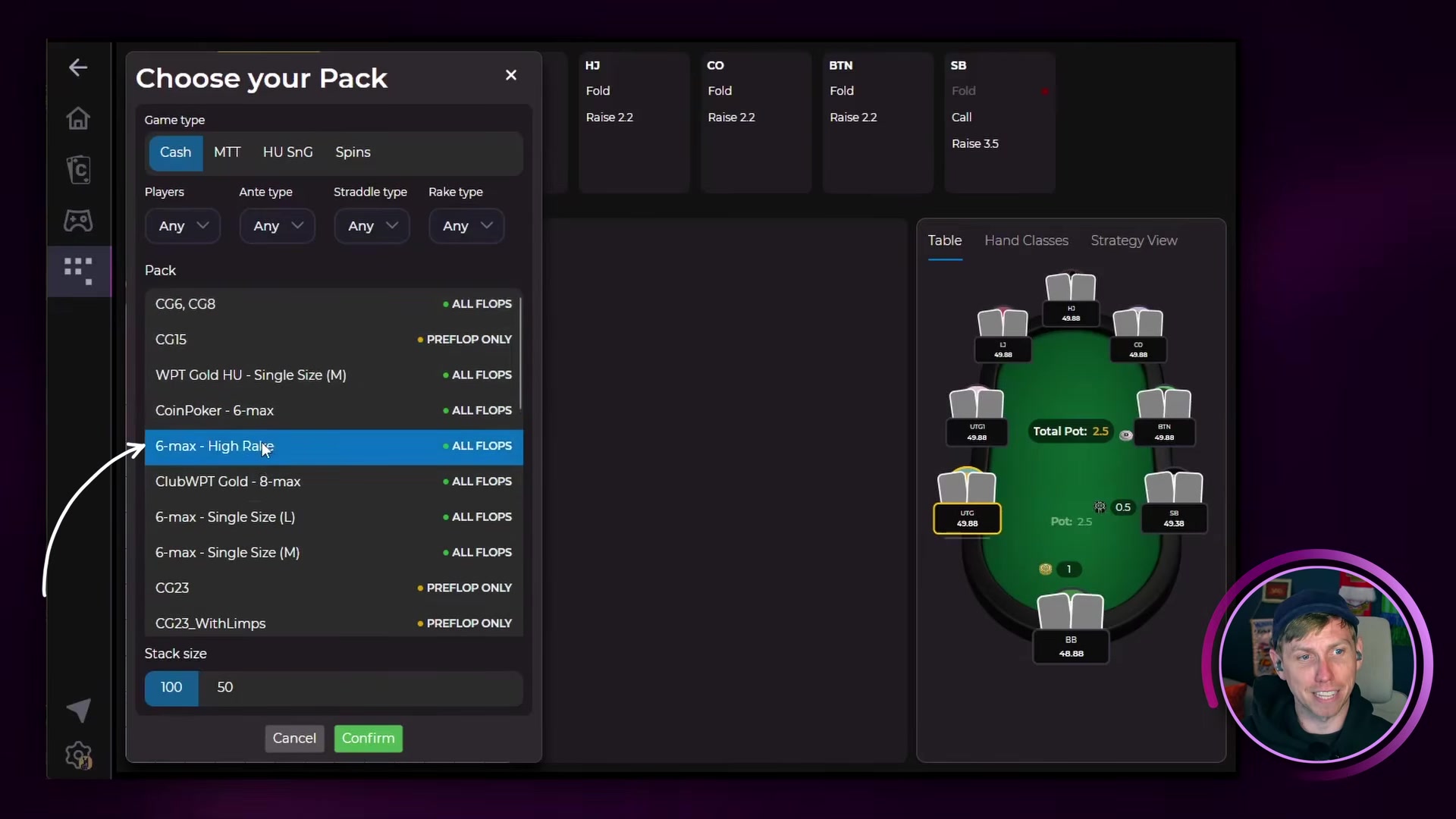
2Select a game typeTap the game type label in the top-left corner to open the selector. Options include 6-max cash, high rake, club sims, single size, and more. Tap Confirm to apply.
-
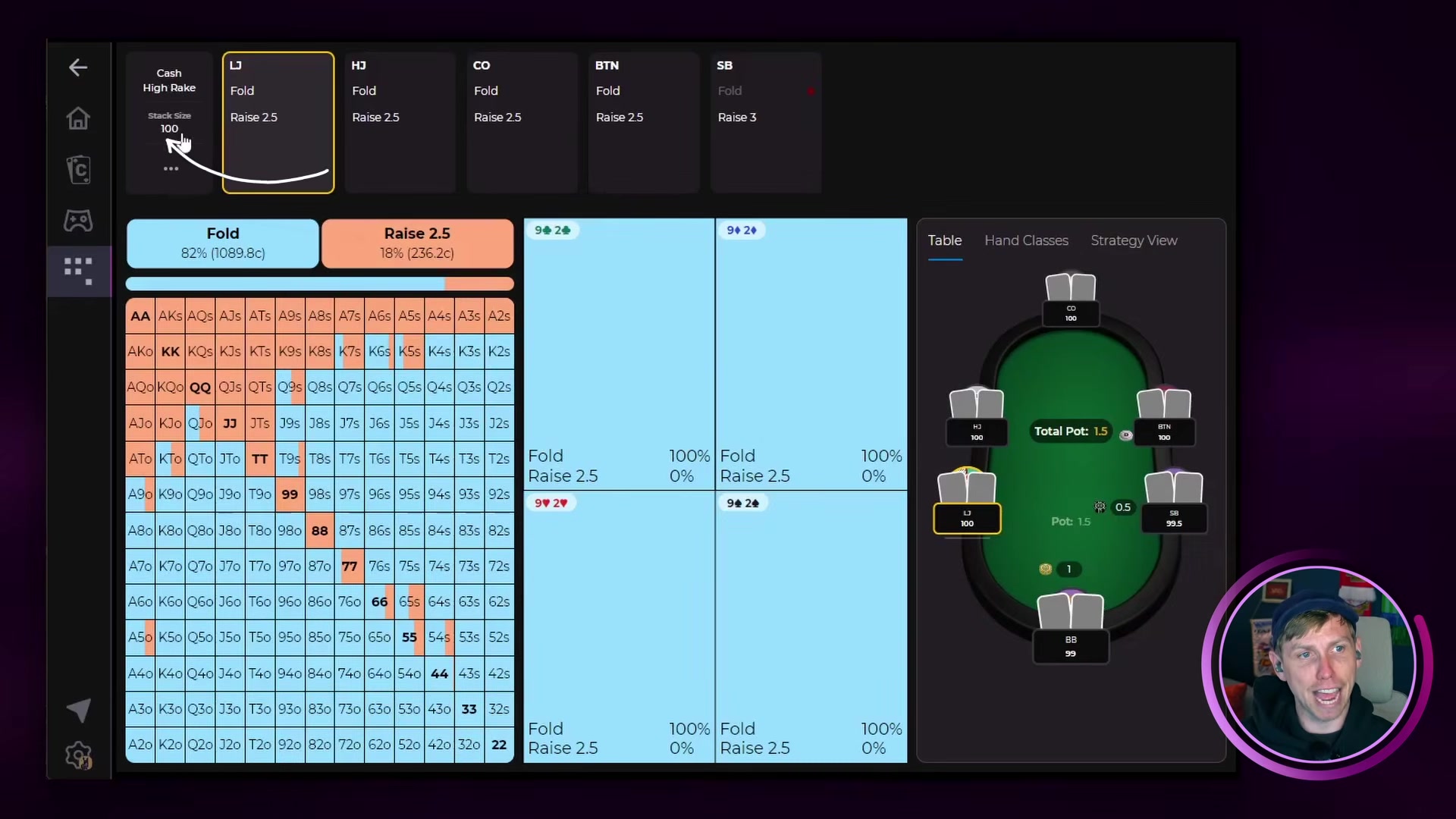
3Select a stack sizeJust below the game type, tap the stack size label to switch between available stack depths for your chosen game type.
-
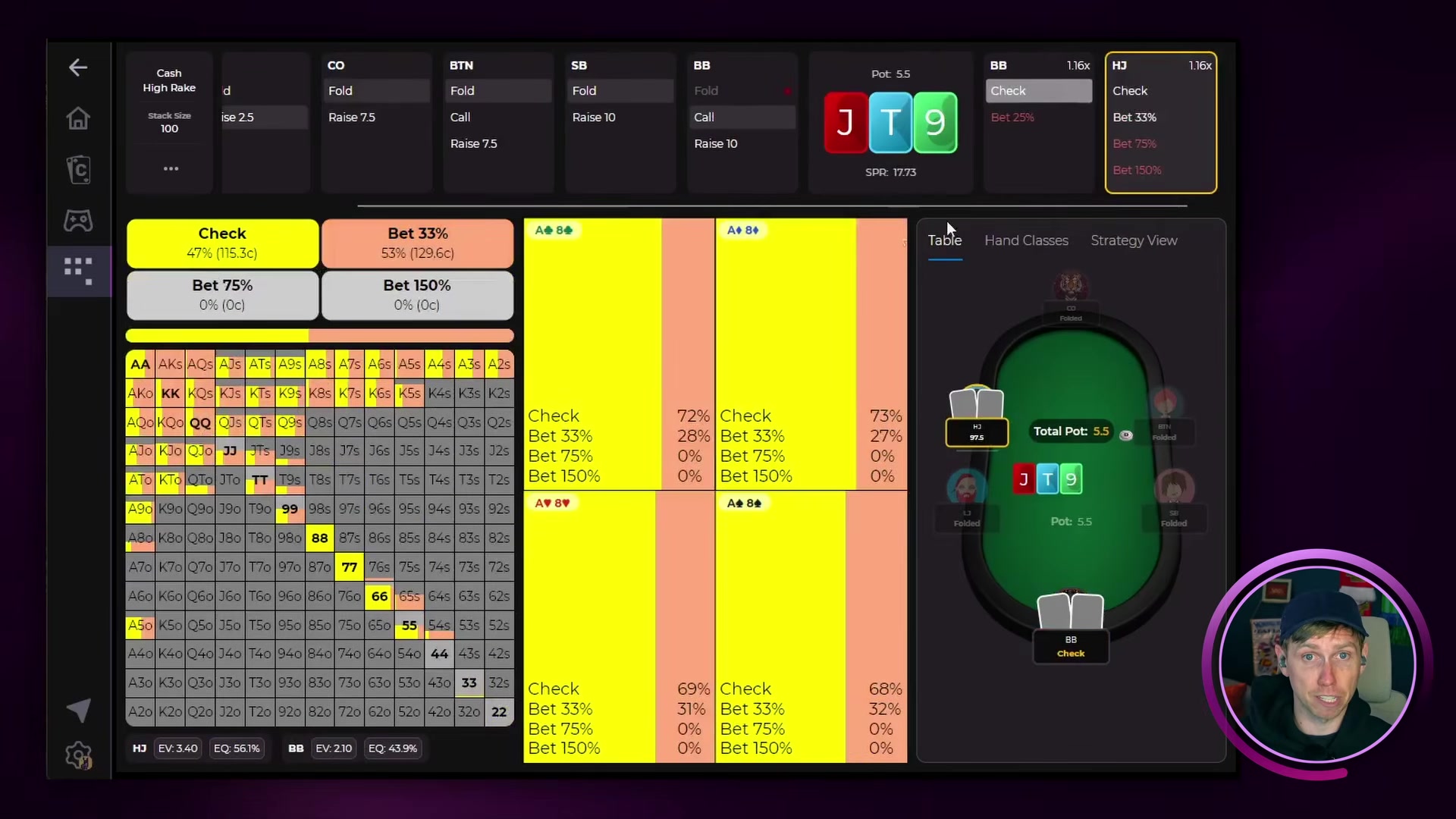
4Navigate the game treeUse the node navigation controls at the top of the screen to build your spot. Select actions for each position to move through the tree toward the node you want to study.
Navigating the Game Tree
The node navigation bar at the top of the screen shows you where you are in the hand. Each position acts in sequence. Select an action for a position to advance to the next decision point.
Building a postflop spot: Hijack raises, everyone folds to the Big Blind who defends. Choose a flop to reach the postflop node and see how both players should respond.
As you navigate, keep an eye out for colored dots on action buttons:
- Red dot: This action ends the game tree. No further nodes exist (e.g. a preflop fold).
- Blue dot: A postflop node exists but is not available in the current sim pack. Most common in multi-way spots.
Postflop Info Panel
Once you reach a postflop node, additional information appears next to the board:
- Pot size: The total pot going into the flop, in big blinds.
- SPR: Stack-to-pot ratio. How many pot-sized bets remain in effective stacks.
- Geometric bet size: The single bet size as a percentage of pot that, if used on every remaining street, results in an all-in by the river.
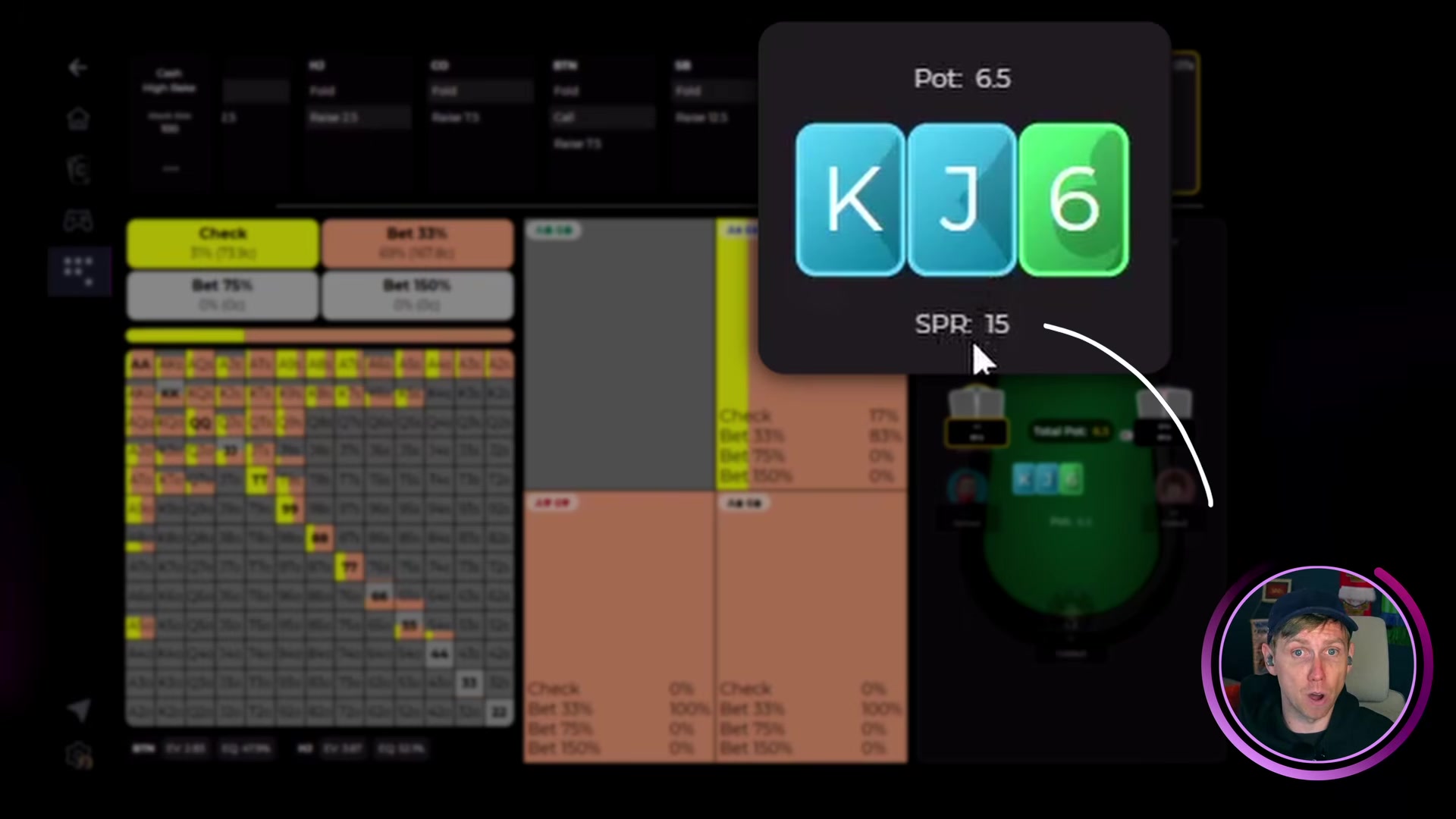
Geometric bet size is an advanced concept. If you are new to solver study, focus on frequency and EV breakdowns first.
Reading the Hand Grid
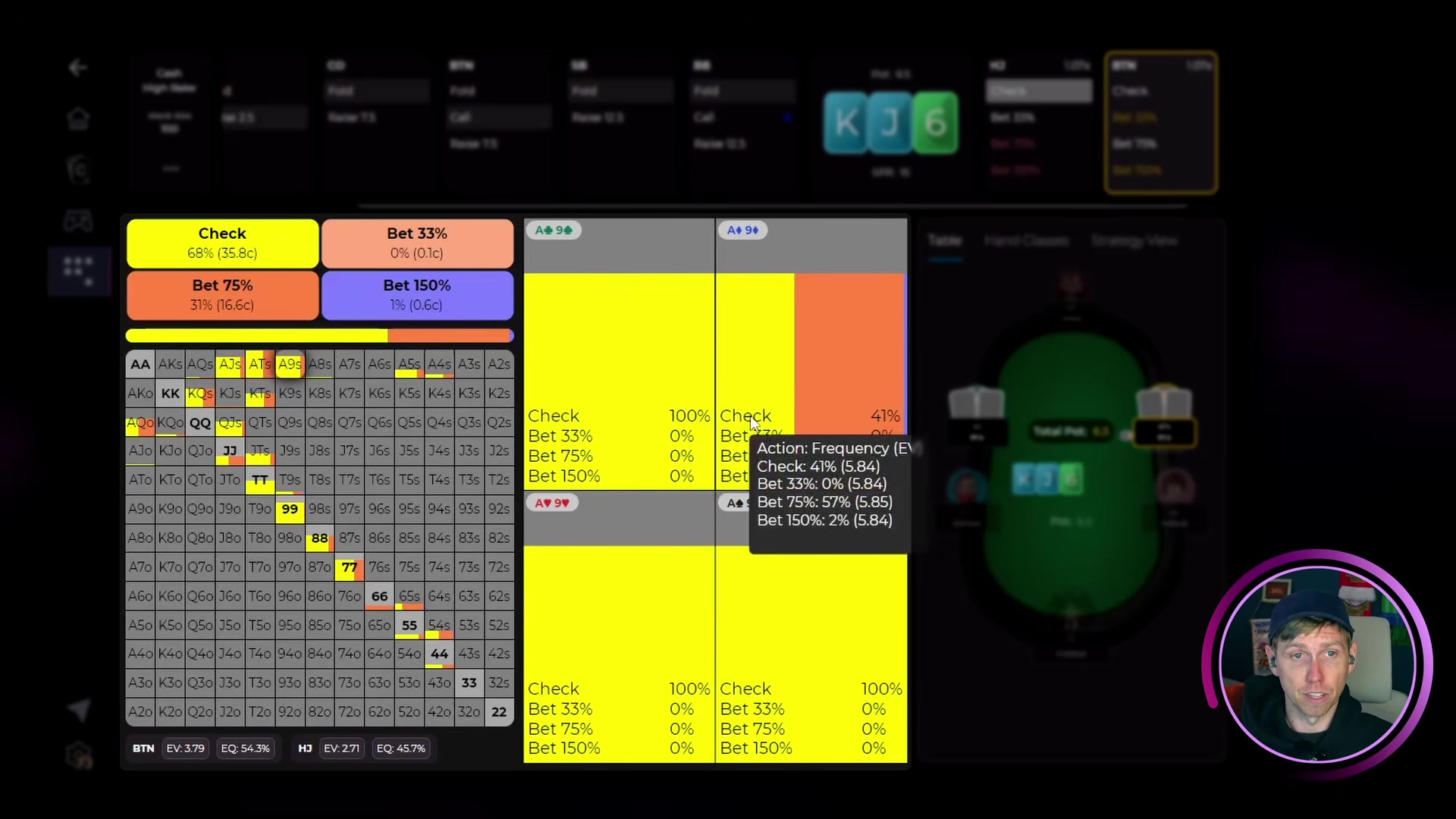
The 13x13 hand grid shows the solver's recommended strategy for every hand combination in the active player's range. Each cell is color-coded by action, and the height of each color bar represents the frequency of that action.
You can interact with the grid in two ways:
- Hover over any cell to preview that hand's action breakdown.
- Click a cell to lock it in and see the full frequency breakdown for that specific hand.
Hand Classes and Range Filters
The right panel offers three tabs for more targeted analysis:
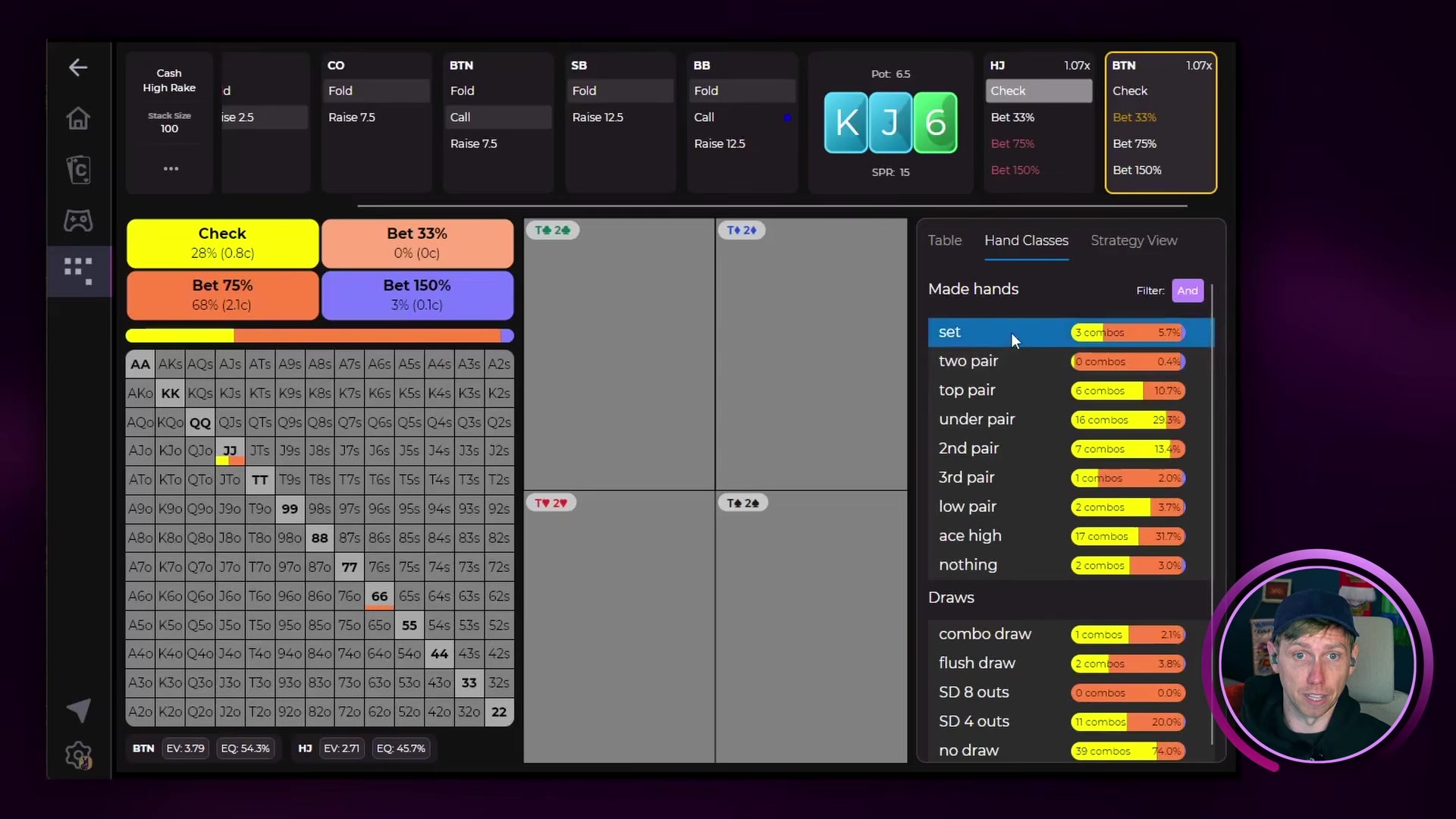
Hand Classes tab
Breaks the active range into categories such as sets, two pair, top pair, draws, and air. Click any hand class to highlight only those hands on the grid. Multiple categories can be selected at once.
Strategy View tab
Lets you filter the range by suit combinations. Clicking a suit filter shows only hands where both hole cards share that suit. Useful for isolating flush draw behavior on wet boards.
The Strategy View tab also contains the height display and rounding controls:
Height display options
- Actual: Bar heights reflect true frequencies. Most accurate view.
- Normalized: The highest-frequency hand is scaled to fill its cell; all others scale proportionally. Easier to read when frequencies are small.
- Full: Every hand displays as if played at 100% frequency. Removes frequency weighting.
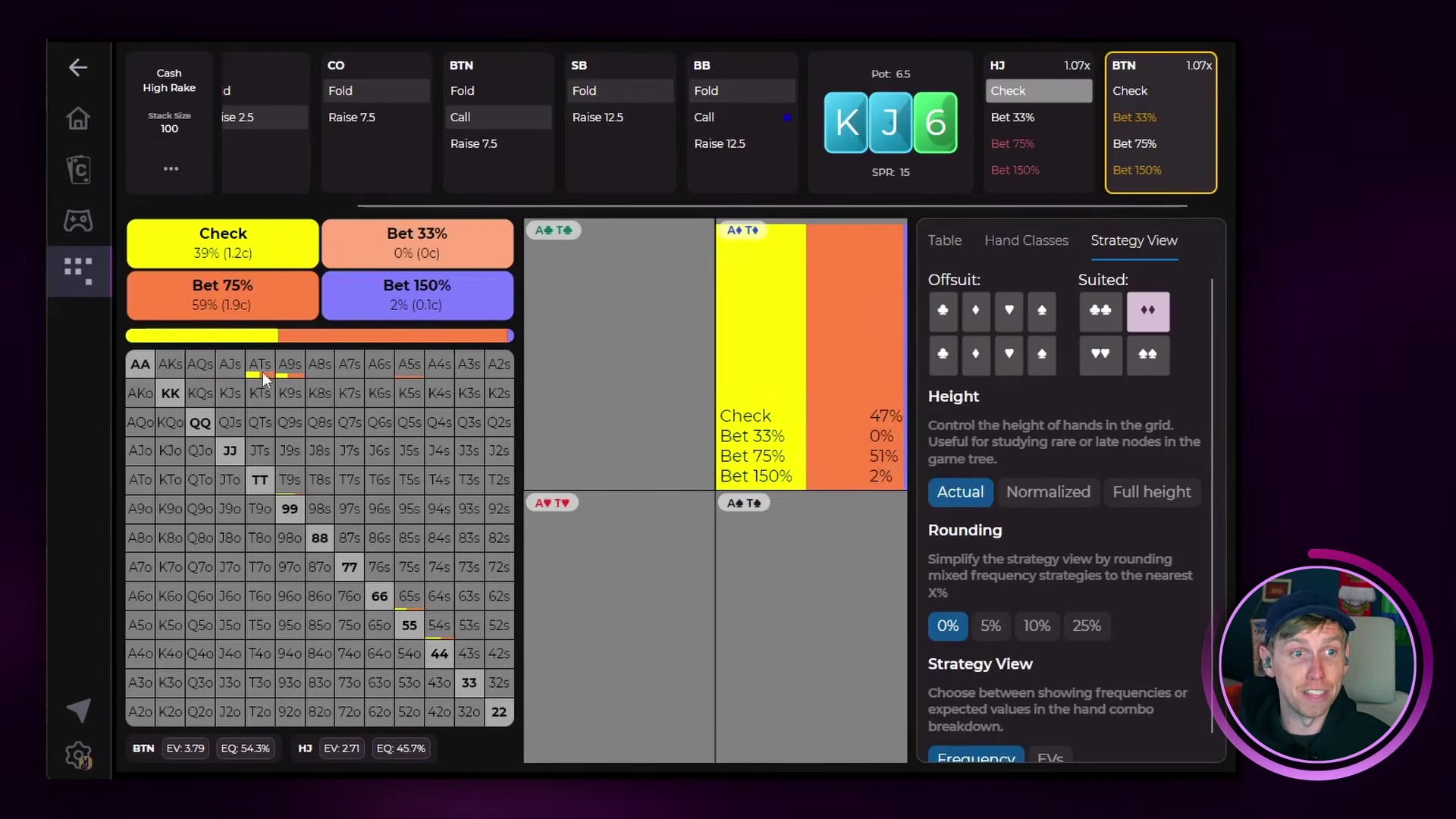
Rounding options
No rounding: Raw solver output. Maximum accuracy.5%: Rounds to nearest 5%. Cleans up mixed strategies significantly.10%: Rounds to nearest 10%. Good for studying simplified ranges.25%: Rounds to nearest 25%. Best for easy-to-execute strategies.
Start with 5% or 10% rounding when learning a new spot. Simplified strategies are easier to internalize and still capture the core of GTO play.
Equity and EV heat maps
At the bottom of the screen, Lucid displays equity and EV totals for each player's range at the current node. Clicking Equity or EV switches the hand grid to a heat map. Greener cells indicate hands with higher equity or EV.
Custom Turn and River Resolves
On turn and river nodes, a Resolve option becomes available. This is powered by Lucid's built-in solver and lets you generate an unexploitable strategy for a specific runout using custom bet sizes for each player.
-
1Navigate to a turn or river nodeBuild your spot through the game tree. The Resolve option only appears at turn and river decision points.
-
2Select the runout cardChoose the specific turn or river card you want to study.
-
3Set bet sizes for each playerChoose which bet sizes each player can use. Tap the pencil icon to enter custom sizes. You can set multiple sizes per player or restrict each to a single option.
-
4Tap ResolveLucid's solver runs and returns an unexploitable strategy based on your inputs within a few seconds. Results appear in the hand grid and strategy panel.
Free users get 1 custom resolve per day. Pro users get effectively unlimited resolves.
Next Steps
After exploring a spot in the Sim Browser:
- Use Create Custom Drill from the three-dot menu to practice the node with active reps
- Check the Hand Classes tab to understand which hand types drive the strategy
- Run a custom resolve on the turn or river to model specific opponent sizing tendencies
- Review Progress Tracking to see how your drill performance trends over time
