
3. Drills Overview
Lucid Poker Drills put you in real hands with instant GTO feedback after every decision. This article covers all three drill modes: Leaderboard Drills, the Preflop GTO Trainer, and Custom Drills, plus a full breakdown of the drill interface.
How It Works
Drills put you inside real poker hands and ask you to make decisions, just like you would at the table. After every action, Lucid compares your decision to the GTO solution for that exact spot and gives you immediate feedback. There is no waiting until the end of a session to find out where you went wrong.
This instant feedback loop is what makes drills one of the fastest ways to fix leaks. You see the mistake, you see what the solver recommends, and you move on to the next hand.
If you are still getting oriented in the app, the Lucid Poker app overview shows how drills fit alongside Cardle and the Sim Browser.
Replace idle scrolling with drill reps. Even five minutes of drills while you wait in line adds up quickly. The habit compounds.
The Drill Interface
Here is what you will see on screen during any standard drill session.
The game area
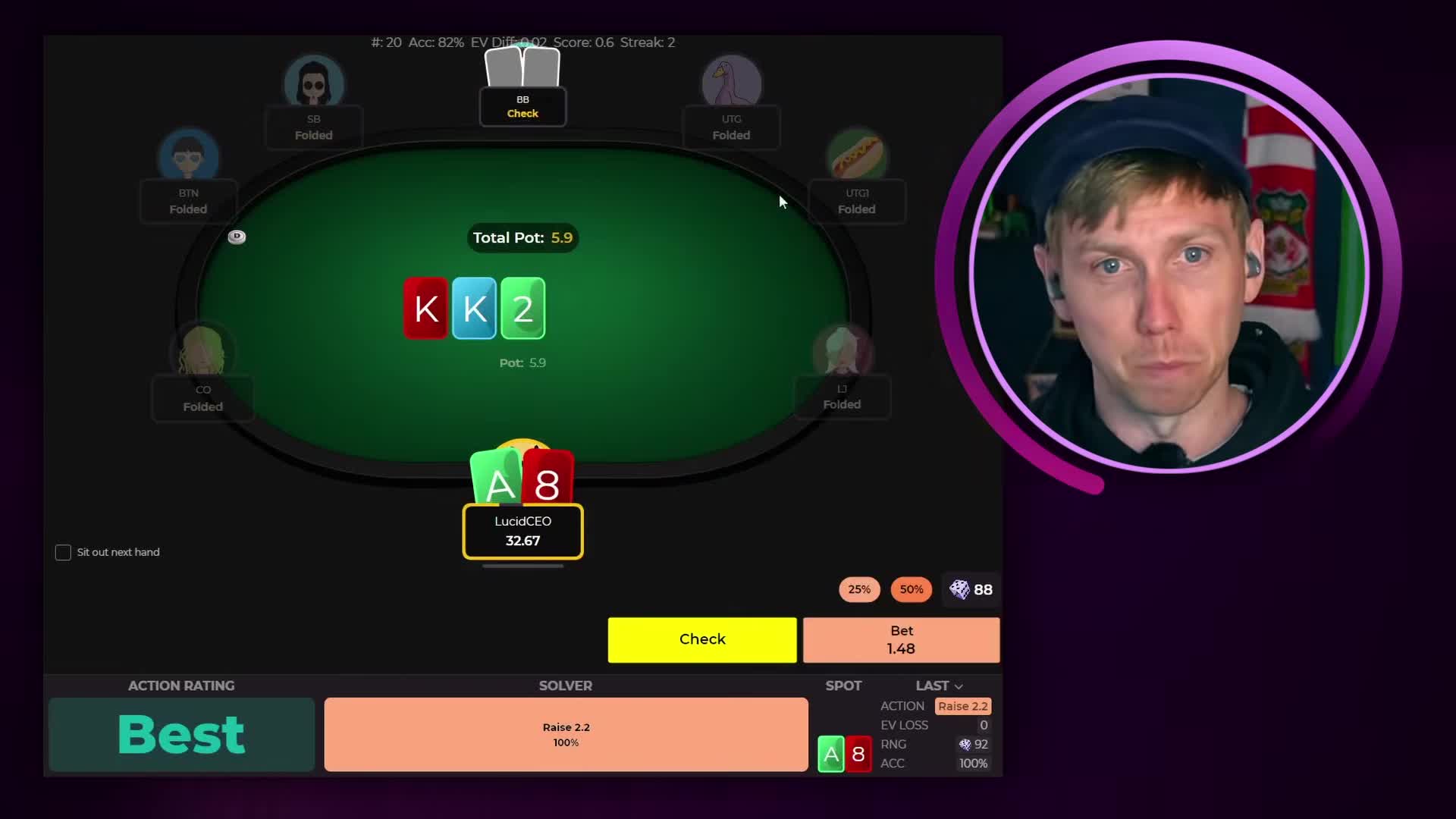
The center of the screen shows the hand in progress: total pot, player positions, actions taken so far, and your available decisions. Bet sizing buttons appear at the bottom. If a spot has multiple viable sizes, you can cycle through them before committing.
Session stats
The top of the screen tracks four numbers throughout your session:
- Hands played: Total hands completed so far.
- Accuracy: Your overall decision accuracy across all hands.
- EV differential: How many big blinds you have lost compared to GTO. Lower is better.
- Score: A composite number used for leaderboard ranking. Reflects accuracy, EV loss, and volume.
Streak
Your streak counter tracks consecutive correct decisions. It resets when you receive an Inaccuracy rating or worse.
The RNG button
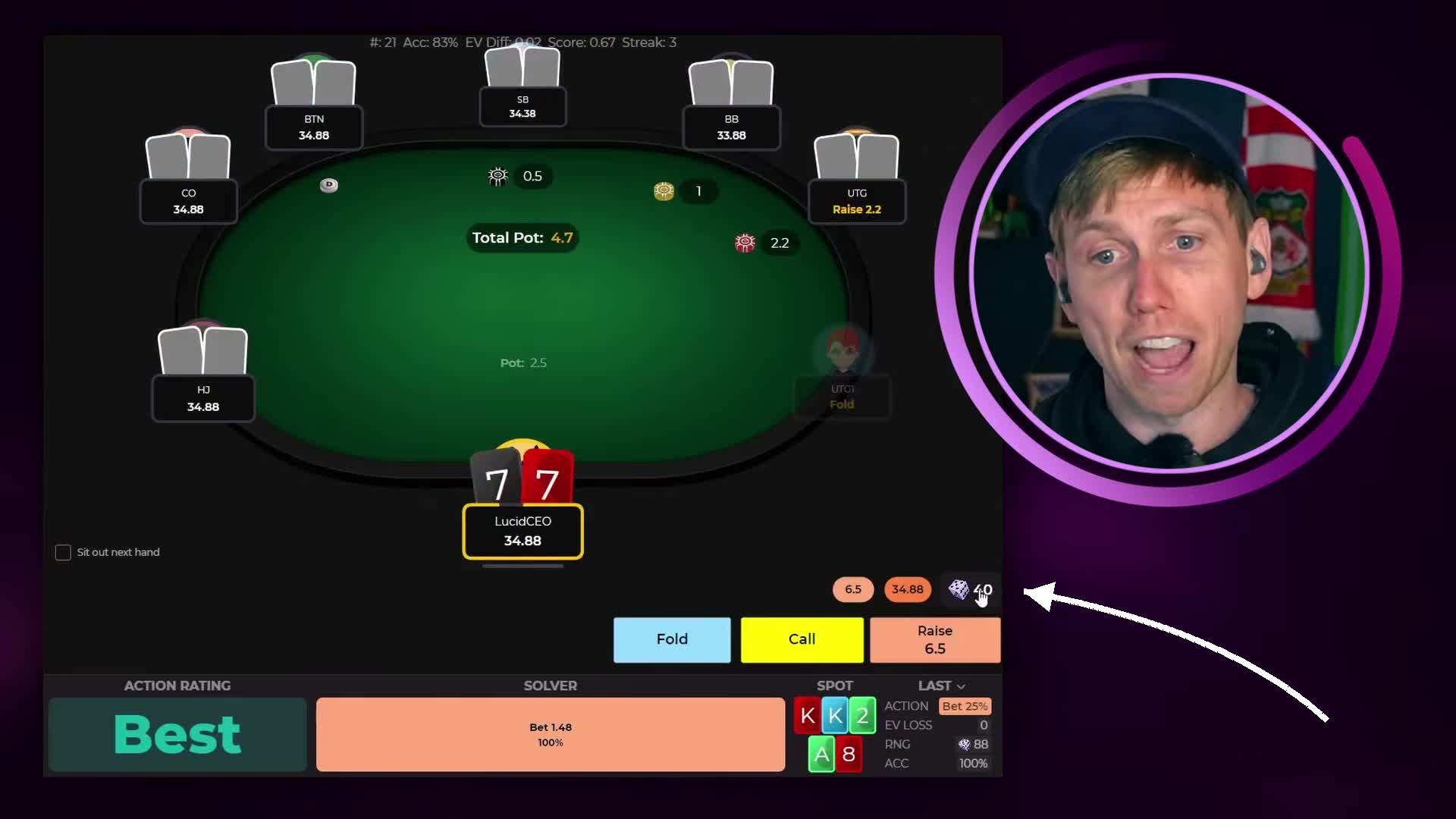
The bottom right of the screen shows a random number generator. In spots where the solver uses a mixed strategy, the RNG tells you which action to take for that specific hand. For example: if the solver calls 22% of the time, you call when your RNG number falls within that 22% window.
You can switch the RNG direction and adjust how often Lucid interrupts you with mistake warnings. See RNG mode and drill settings for the full breakdown.
Use "Sit Out Next Hand" before ending a session. This lets the current hand finish cleanly so your stats are not cut off mid-hand.
Reading Your Action Rating
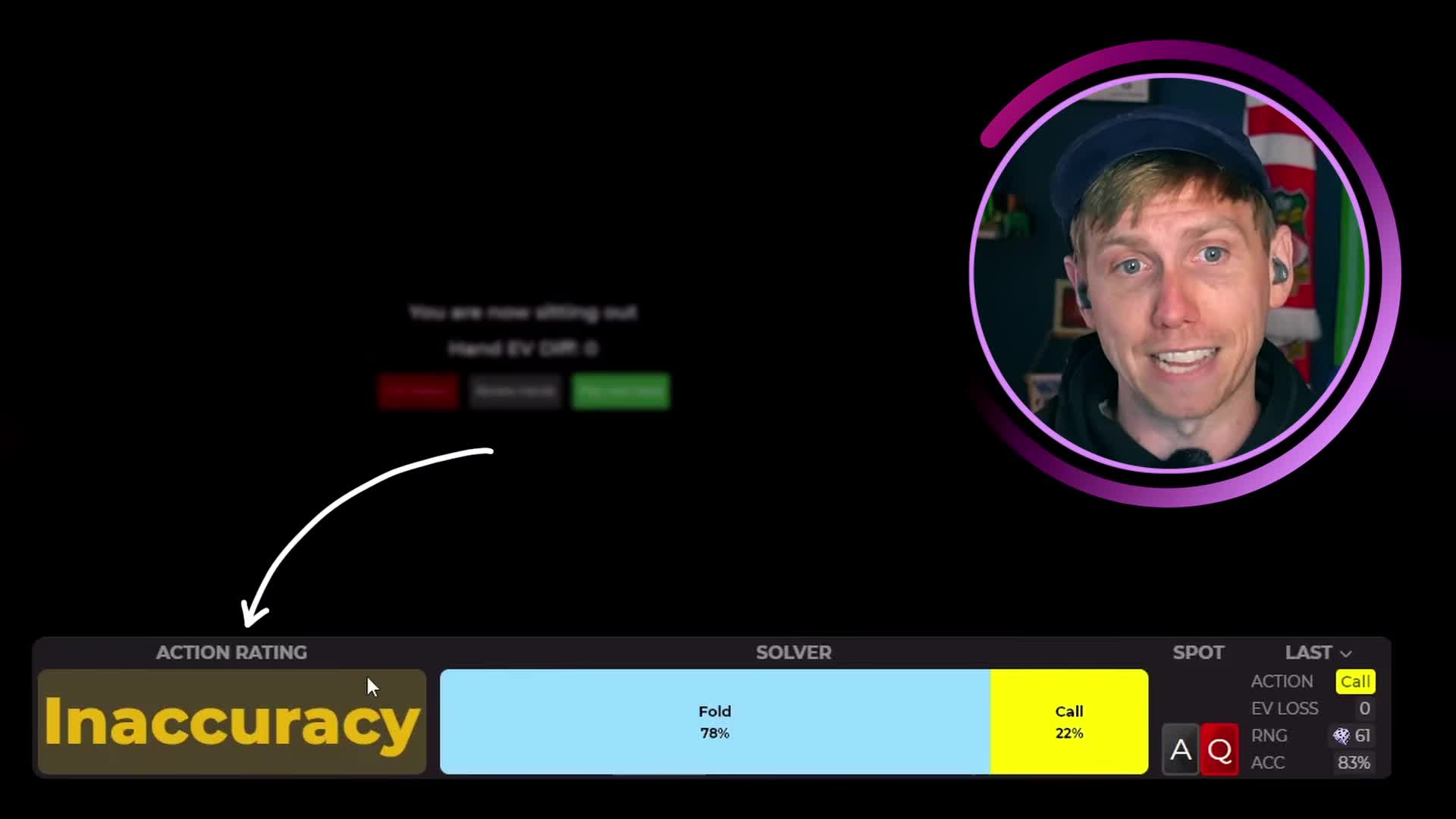
After every hand, the bottom of the screen shows a rating for your last decision. This is the most important feedback in the drill interface.
Rating levels
- Best: Your decision matched the solver's top action at your exact RNG number. Highest possible rating.
- Good: The solver makes this play at a meaningful frequency, but your RNG number fell outside that window this time.
- Inaccuracy: The solver makes this play, but only at a very low frequency. Not wrong in principle, but outside what GTO would do most of the time.
- Mistake: The solver would never make this play, but the EV loss is small. Study the frequency breakdown to see what you should have done.
- Blunder: The solver would never make this play and the EV loss is significant. Open the spot in the Sim Browser and study it carefully.
Scenario: You call an all-in with A♥Q♣ for 20 big blinds. The solver calls 22% and folds 78%. RNG number 15 (within the window): Best. RNG number 50 (outside the window): Inaccuracy. Same action, different rating based on your RNG.
Reviewing past hands
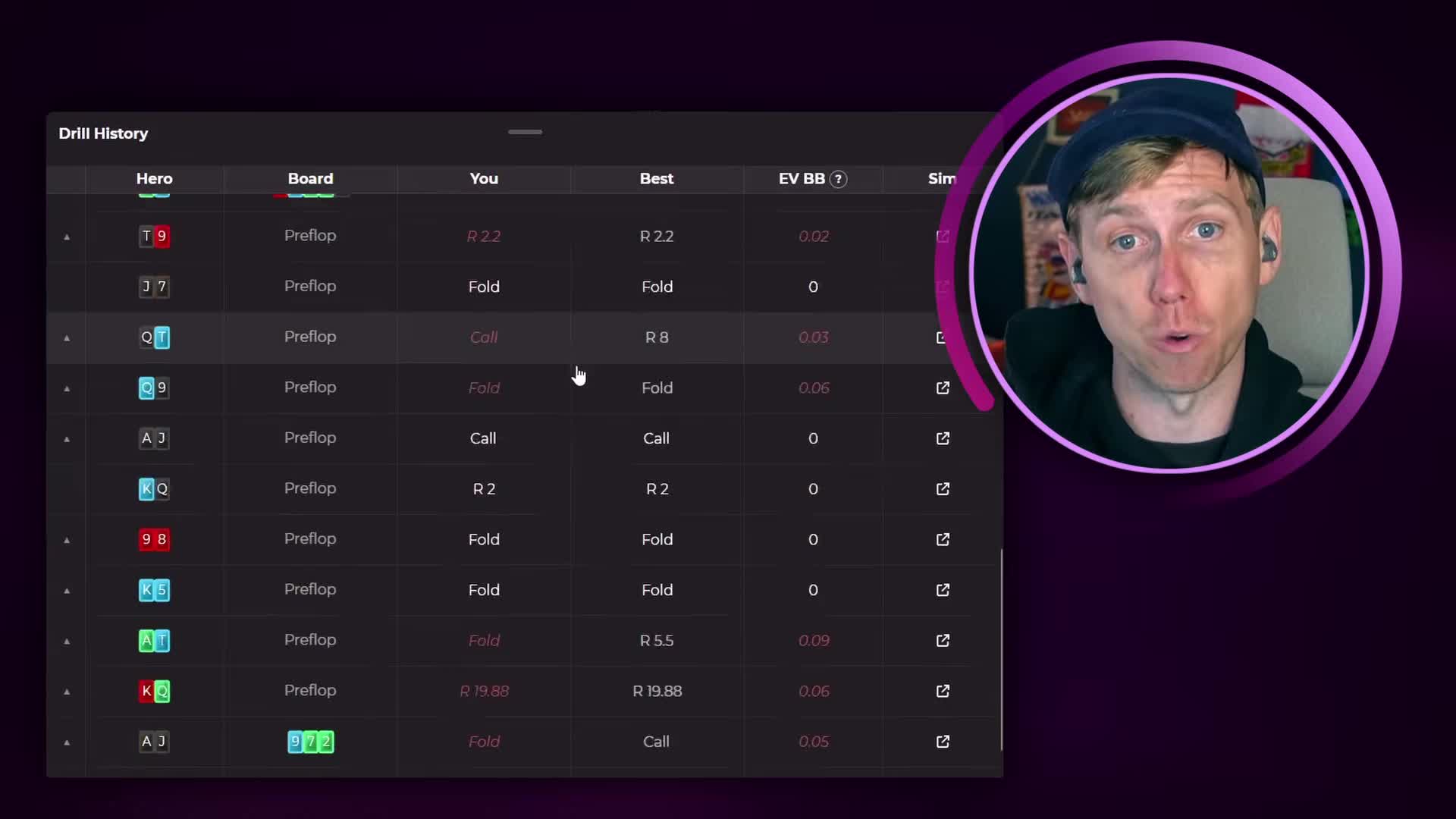
Tap the Last dropdown at the bottom of the screen to expand a list of all hands in your current session. Tap any row to review the spot or follow the link into the Sim Browser. Once there, the EV and equity heat maps give you a fast read on which player held the range advantage.
Drill Modes
Lucid offers three drill modes. Each serves a different purpose.
Leaderboard Drills
The default drill mode. You play hands from a curated set of game types and compete against other Lucid users on a global leaderboard. Available formats include cash games, heads-up, sit-and-go, spin-and-go, and tournaments.
- Free users: 20 leaderboard hands per day.
- Pro users: Unlimited hands.
Read how Leaderboard Drills work for the ranking system and the monthly prize raffle.
Preflop GTO Trainer
A free, unlimited drill mode focused entirely on preflop decisions. Set up a session in a couple of taps and start working on opening ranges, 3-bet frequencies, and preflop calling ranges. No Pro subscription required.
Custom Drills (Pro only)
Build a drill session targeting a specific spot type. Filter by position, street, board texture, and stack depth to isolate exactly the situation you want to work on. This is the most efficient way to fix a specific leak. The Custom Drills setup guide covers every filter and the saved config workflow.
Custom Drills pair well with Study Plans. If Progress Tracking shows a recurring weakness in a spot type, build a Custom Drill around it for targeted reps.
Next Steps
Once you are comfortable with the drill interface:
- Play a Leaderboard Drill to see how your score compares
- Build a Custom Drill around a spot type you keep misplaying
- Follow the solver link on any Mistake or Blunder to open the node in the Sim Browser
- Tune your RNG direction and warning threshold in Settings
