
6. Custom Drills
Custom Drills let you build targeted practice sessions around specific spots, positions, stack depths, and board types. A Pro-only feature with full configuration options.
How It Works
Custom Drills give you control over what you practice. Instead of working through a random mix of spots, you define the exact scenario: game type, stack depth, pot type, your position, your opponent's position, and the types of boards you want to see. Lucid then serves hands that match your criteria and gives you instant GTO feedback on every decision.
The feature is designed for players who know where their leaks are and want to put in focused reps. If you struggle in 3-bet pots out of position, or on paired boards, or against specific villain positions, Custom Drills let you isolate that exact situation and drill it until the right play becomes automatic.
Custom Drills are one of three drill modes in Lucid. The drills overview compares all three and explains the action ratings you will see during a session.
Custom Drills are a Pro-only feature. Free accounts can access preflop drills and up to 5 postflop drills per day. Custom Drills with full configuration options require an active Pro subscription.
Setting Up a Custom Drill
Here is how to configure and launch a custom drill from scratch:
-
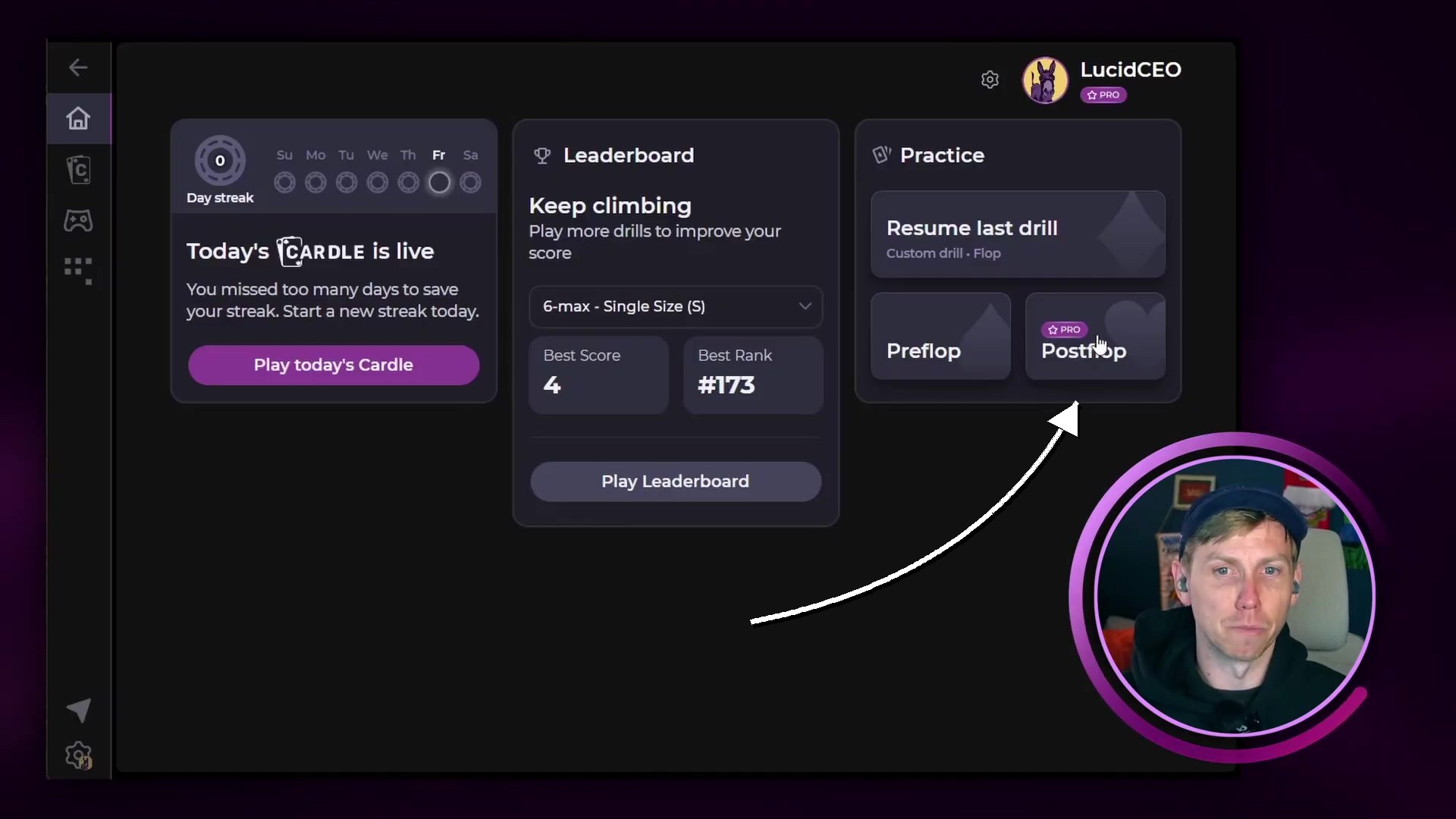
1Tap the Postflop button on the home screenFrom the Lucid home screen, tap Postflop. This opens the drill configuration page.
-
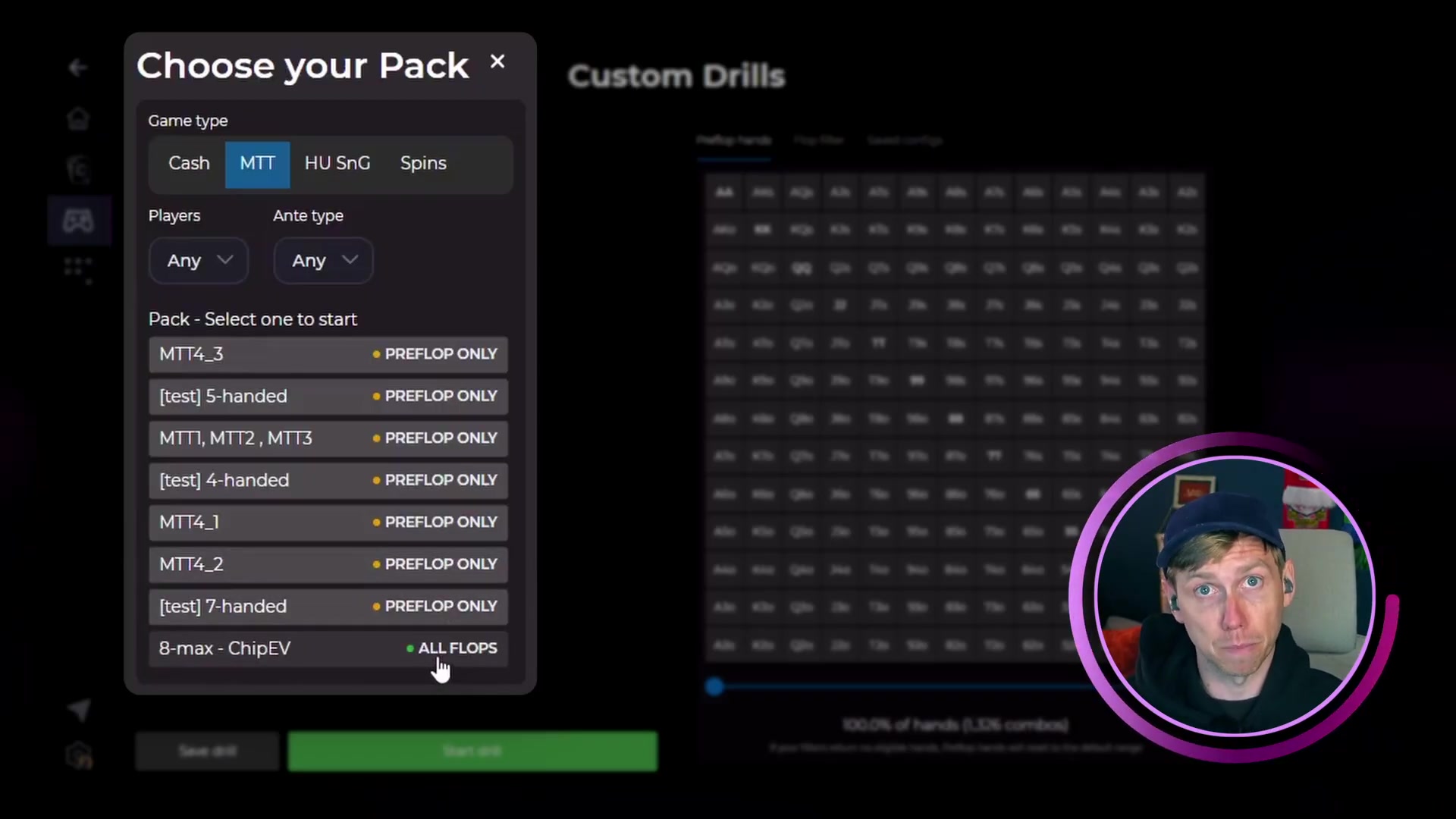
2Choose your pack (game type)Select the sim pack that matches the game you want to study. Options include cash game and MTT packs. Packs are labeled to show coverage: preflop only, all flops, or a subset of flops. Some packs shown are internal and can be ignored.
-
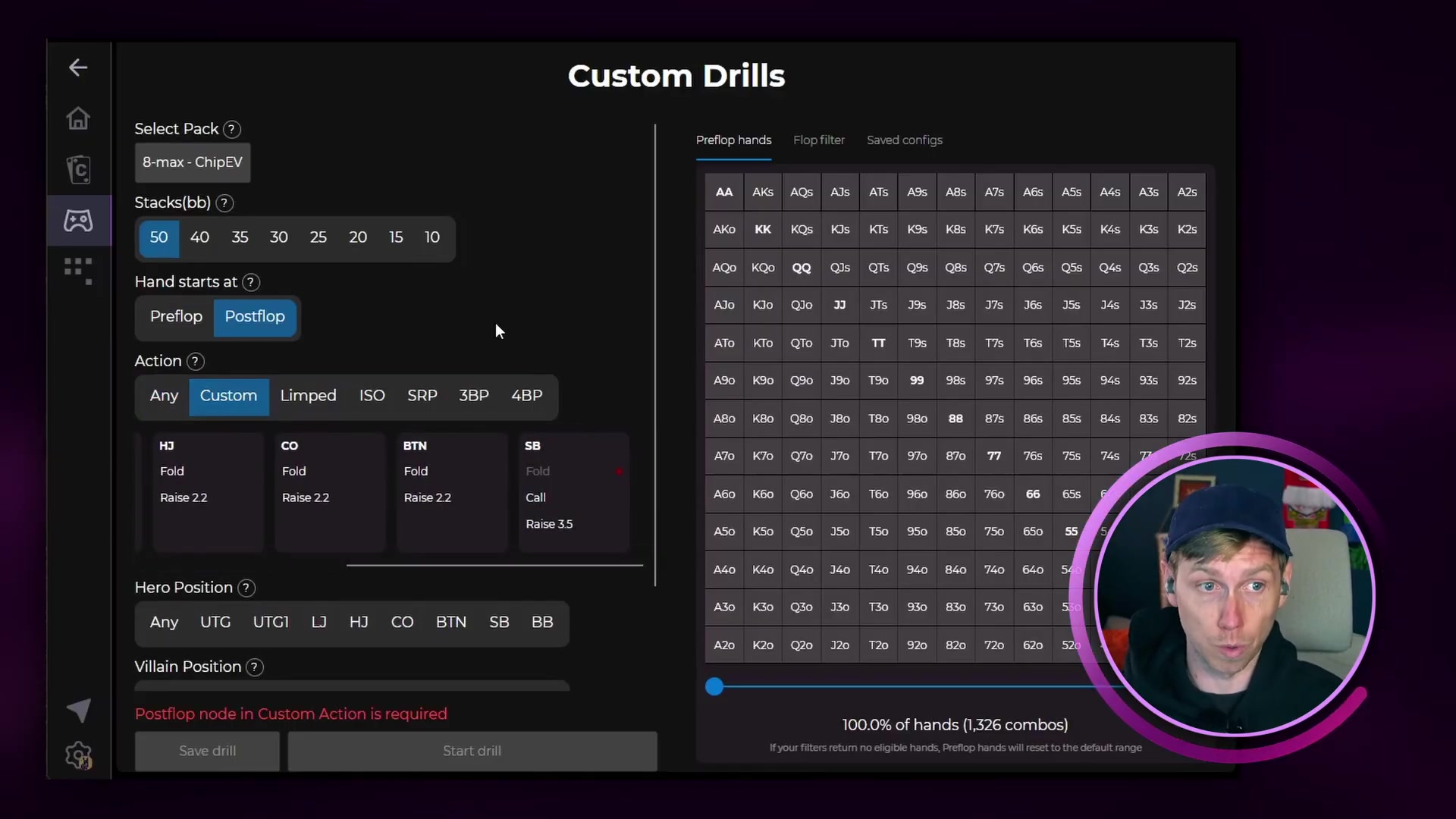
3Select your stack depthChoose the stack size in big blinds. Deeper stacks are better for studying spots with more streets of play ahead.
-
4Choose when the hand startsSelect Preflop to begin from the start of the hand, or Postflop to jump straight to the first postflop decision.
-
5Select the pot type and actionChoose from: Any, Custom, Limped Pot, ISO Pot, Single Raised Pot, 3-Bet Pot, or 4-Bet Pot. Pick the pot type that matches the situation you want to study.
-
6Set your position and your opponent's positionChoose which seat you are playing from and which seat your opponent is in. These two selections determine the exact matchup you will drill.
-
7Choose when the hand endsSelect First Action to stop after one decision, Street End to play out the full street, or Hand End to play to completion.
-
8Apply any advanced filters (optional)Use the right-side panel to filter by preflop hand class or board texture. See below for a full breakdown of these options.
-
9Start or save your drillTap Start Drill to begin immediately. Tap Save Drill to name and store the config for later.
Before your first session, it is worth setting your RNG direction, drill pace, and mistake warning threshold. All three live on the Settings page.
Advanced Filters
Two optional filter panels on the right side of the configuration screen let you go deeper. Neither is required, but both are useful when targeting a specific leak.
Preflop Hand Filter
Filter by hand class so every drill hand matches a specific holding type. Examples: big pairs (aces through tens), suited connectors, small pocket pairs. Deselect all hands first, then select only the classes you want.
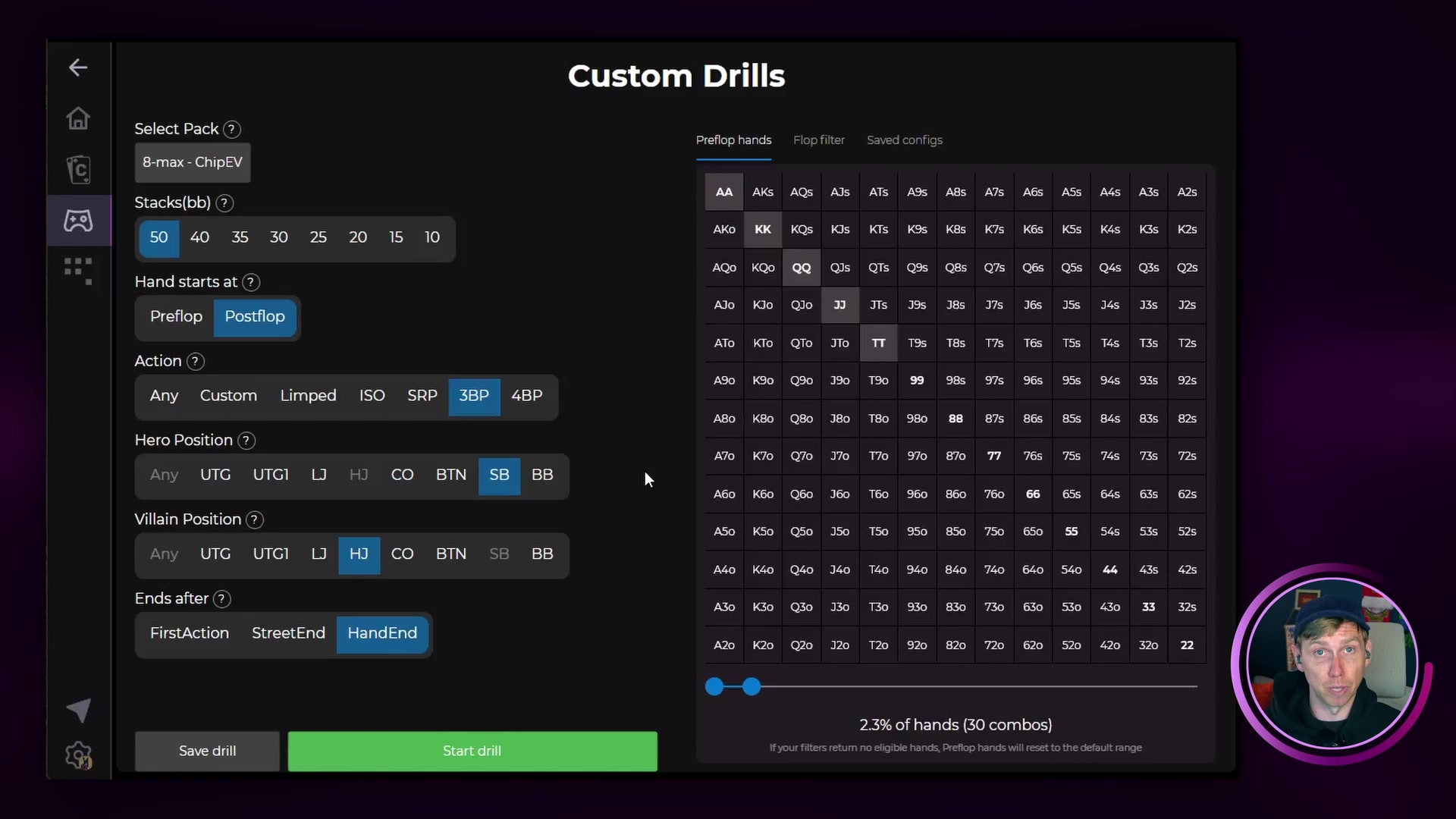
Scenario: You want to practice playing AA through TT in a 3-bet pot from the small blind. Deselect all hand classes, then select only the big pair range. Every hand in that drill session will deal you a premium pair.
Flop Filter
Control the exact types of boards you see. Options include card ranks, connectedness, pairedness, and suitedness. After adjusting, tap Update to confirm. Lucid will show how many qualifying flops match before you start.
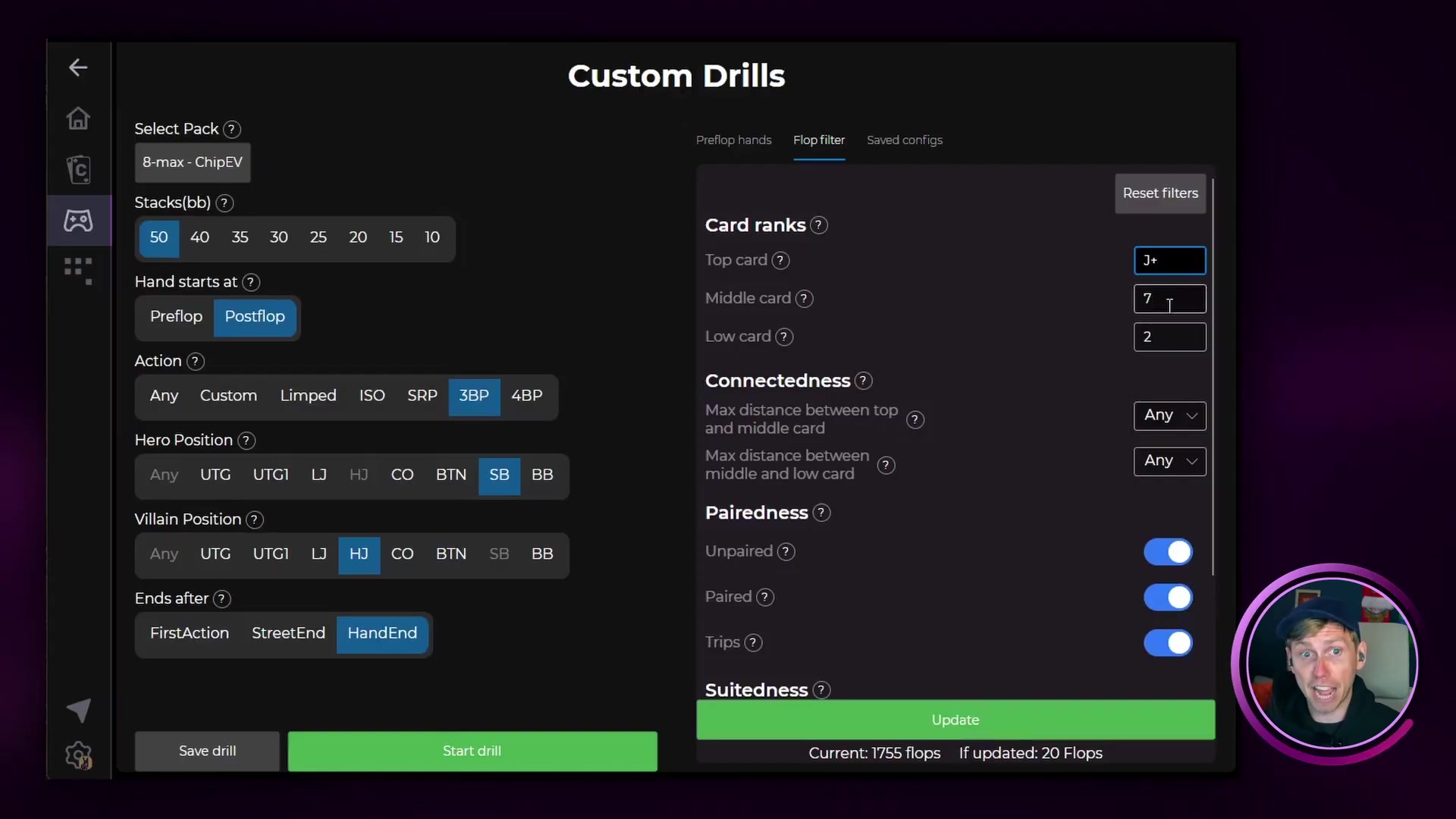
Start broad, then narrow. Running your first session across all flops (1755+ in some packs) gives you a realistic sample of the spots you will face. Once you identify a board type you consistently misplay, come back and filter to that texture.
Not sure which textures give you trouble? Open a few candidate boards in the EV and equity heat maps to see where your range is weakest before you build the filter.
Saving Drill Configurations
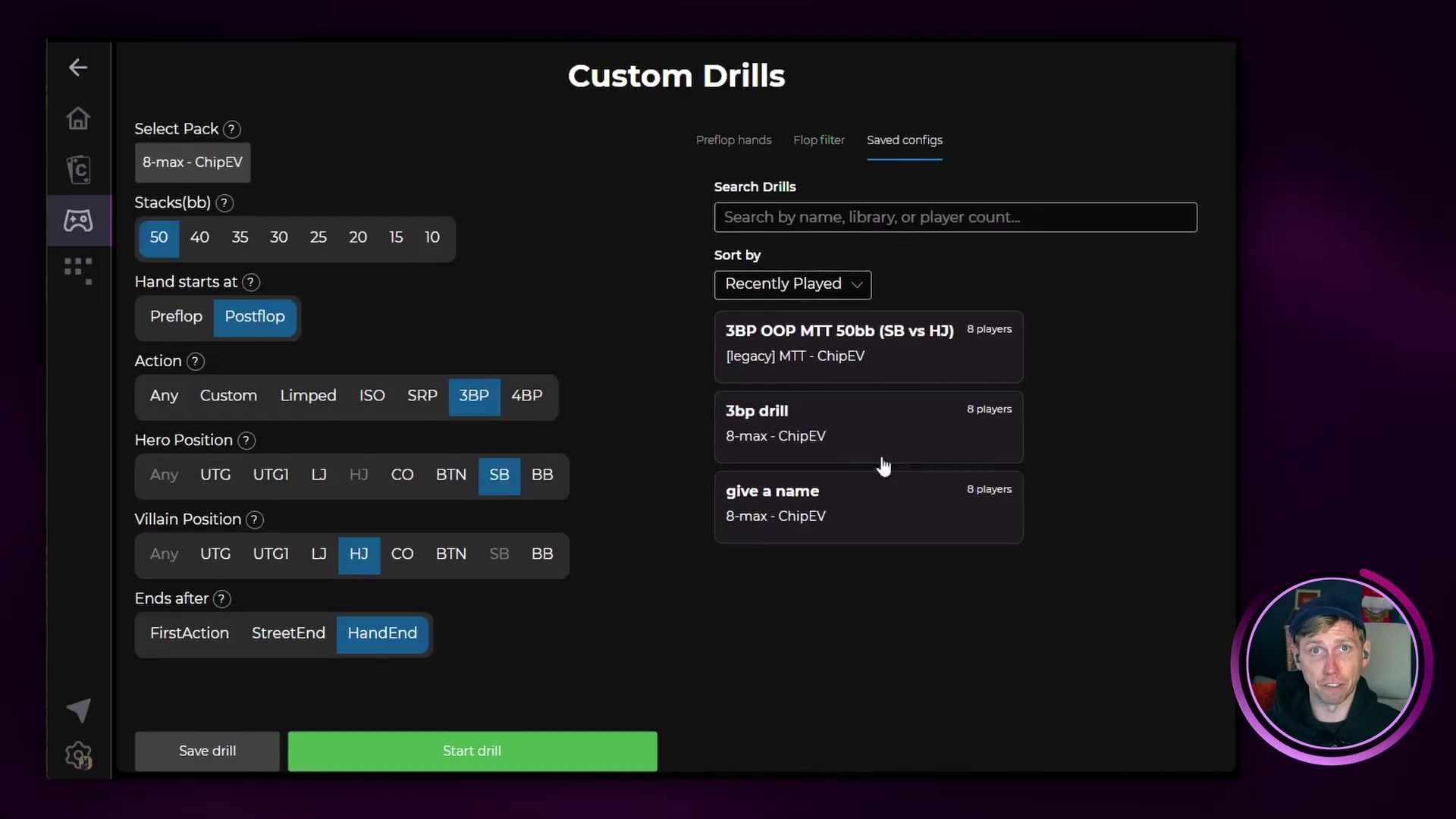
Any drill configuration can be saved and reused. Tap Save Drill before starting, give it a name, and it will appear in your saved configs list.
Common Questions
I do not see the Custom Drills configuration options
Custom Drills require an active Pro subscription. If you are on a free account, you will have limited access to postflop drills with no custom configuration. Start a free trial to unlock the full feature.
What does "ISO Pot" mean in the pot type selector?
An ISO pot (isolation pot) is a hand where one player limped and another player raised to isolate them. It produces a different range dynamic than a standard single raised pot.
Some packs show unusual names or labels
The pack selector includes some internal Lucid packs used for development. These can be ignored. Look for packs labeled with recognizable game types (cash, MTT) and stack depths.
Can I drill a specific hand combination, not just a hand class?
The preflop hand filter works at the hand class level. It does not support filtering to a single exact holding like AhKd. For that level of specificity, use the Sim Browser to navigate directly to a node.
Next Steps
Once you have completed a custom drill session:
- Open any hand you are unsure about in the Sim Browser to see the full solver strategy for that node
- Test alternative bet sizes in the same spot with custom solving with subtrees
- Save the drill config if you plan to return to the same spot type in future sessions
- Take the same spot type into Leaderboard Drills to see how it holds up in a full-session format
